When it comes to tablets, I will always think of what it is made for and it will usually comes with a mid-range setup. Many brands are making tablets but not many are producing powerful high-end kind. This is where Samsung prevails, always.
Since the Galaxy Tab S6 that I’ve tested last year, I have not seen any other brands making any tablets that is comparable to Samsung’s best tablets except the ones by Apple. So when it comes to tablet territory, Samsung and Apple are the best in the market.
Now with the introduction of the new Samsung Galaxy Tab S7 and the S7+, Samsung has made a huge leap forward when it comes to a productivity device. I fell in love the very minute I lay my eyes on the Tab S7+ for this review. And I thank Samsung for the opportunity to use and play with the tab for two whole weeks. So this is my full review of the new Galaxy Tab S7+.
First Look & Design
Unboxing the Galaxy Tab S7+ excites me. Why not? I was actually looking forward to review this baby since it was announced a few weeks back. The launch happened alongside the new Galaxy Note20, which is another device that I am looking forward to review as well.
The Galaxy Tab S7+ comes in a slim box. Inside the box, I was immediately greeted by the tab itself, covered in cloth case that made everything look and feel premium. At this price point, it should give that feel. And I was not disappointed.
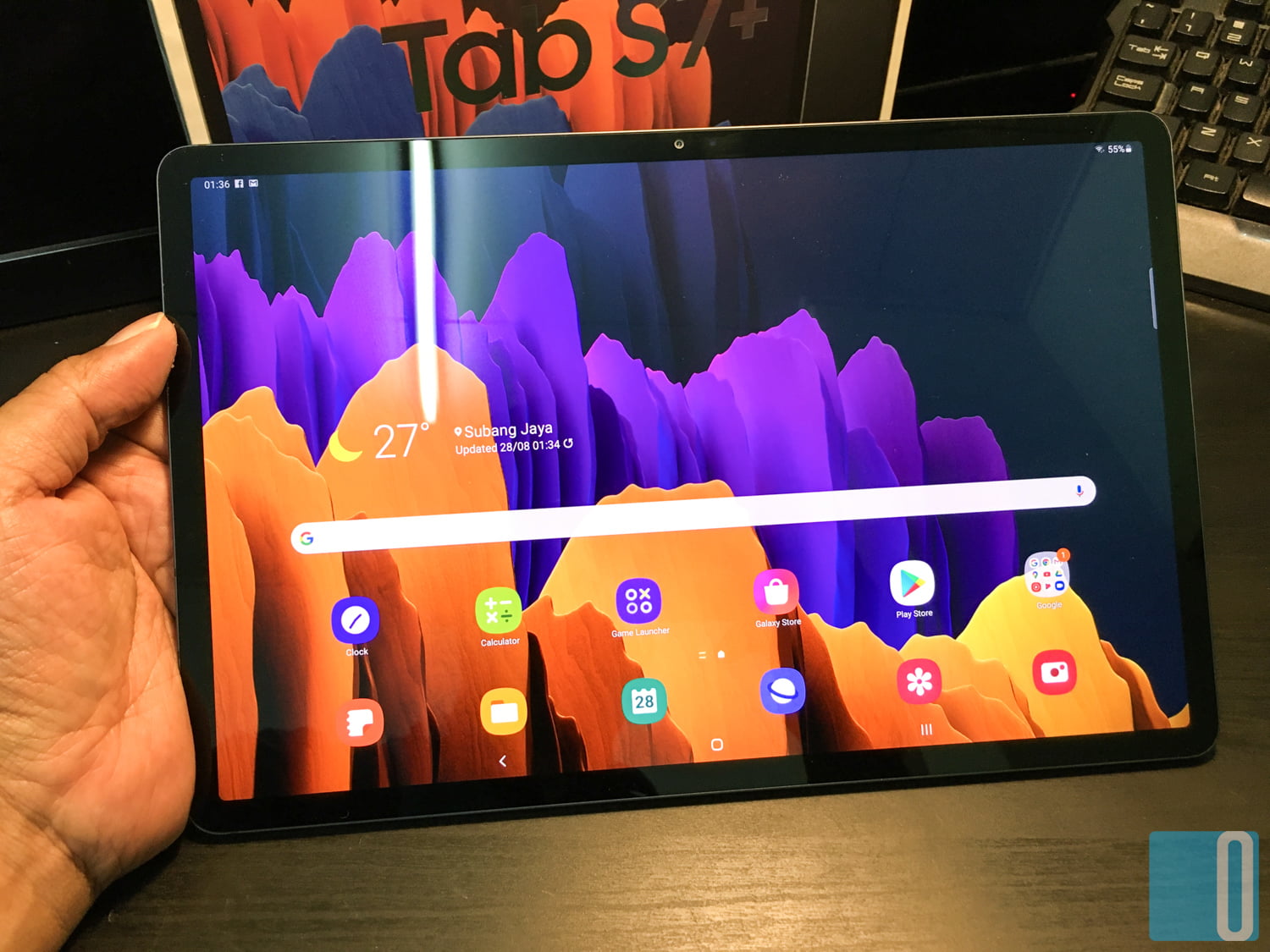
Holding the Galaxy Tab S7+ for the first time, I immediately noticed how thin it is. The flat back and squared edges feels great. I actually prefer it like this rather than having rounded edges. This feels solid. It feels like something that is being made in extreme precision. Every corners and edges feels premium. So my first impression was very impressive.
The review unit also comes with a book cover keyboard. With this, I can fully test the tab like how it is intended – total versatility like a laptop. And slapping the book cover keyboard on the tab is essential to fully test its potential.
But first, I am going to talk about the tablet itself.
The 12.4″ Super AMOLED display is gorgeous. That is pretty much the standard for Samsung’s flagship devices nowadays. I love the deep vibrant colours on this tab squeezed into 1752 x 2800 pixels resolution. The front selfie camera is located at the top center of the tablet when holding it in landscape mode. Since the Galaxy Tab S7+ is made for mobile productivity, it is made to use mostly like a laptop, hence why the selfie camera is located there for easy video conference call.
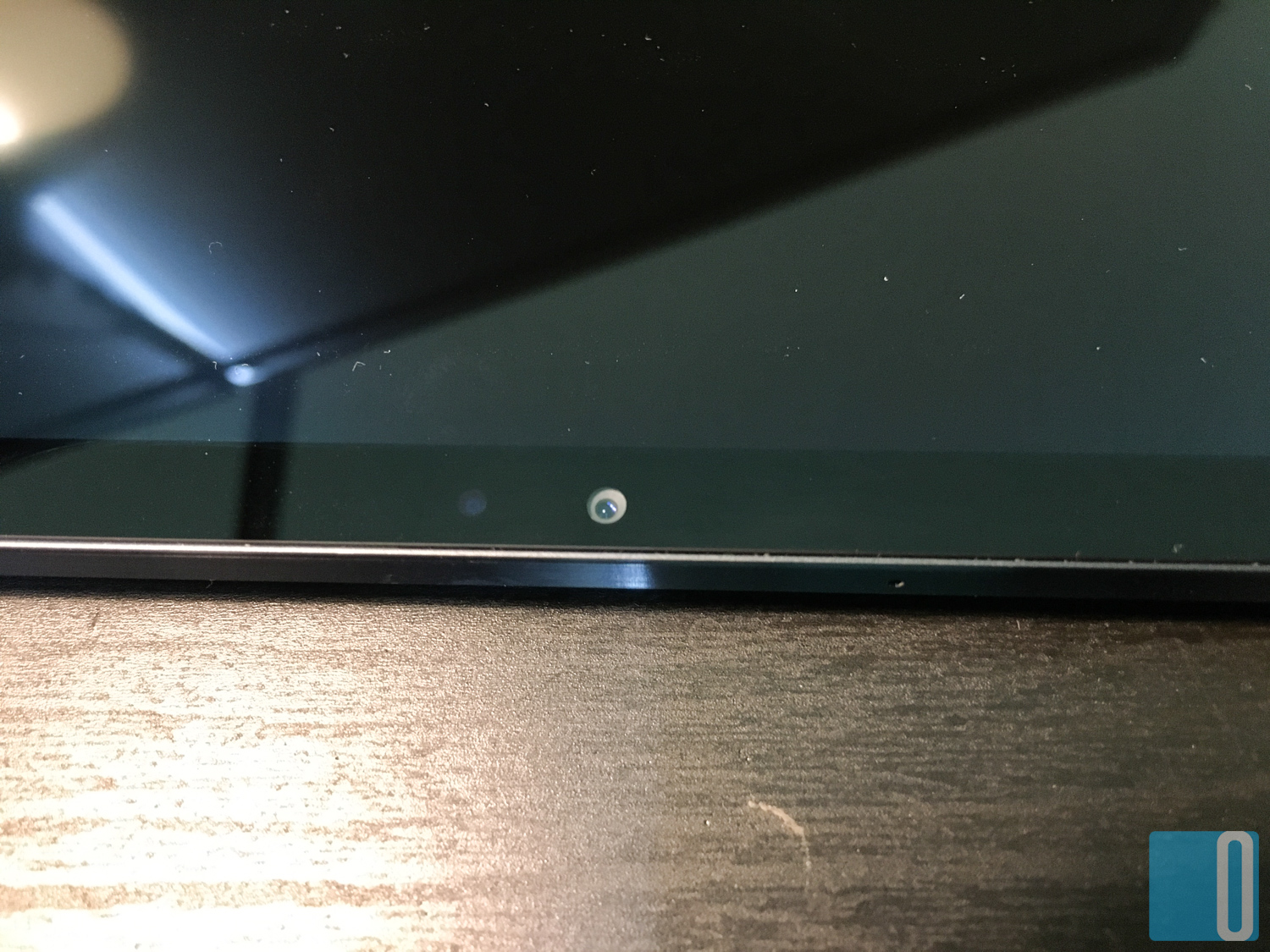
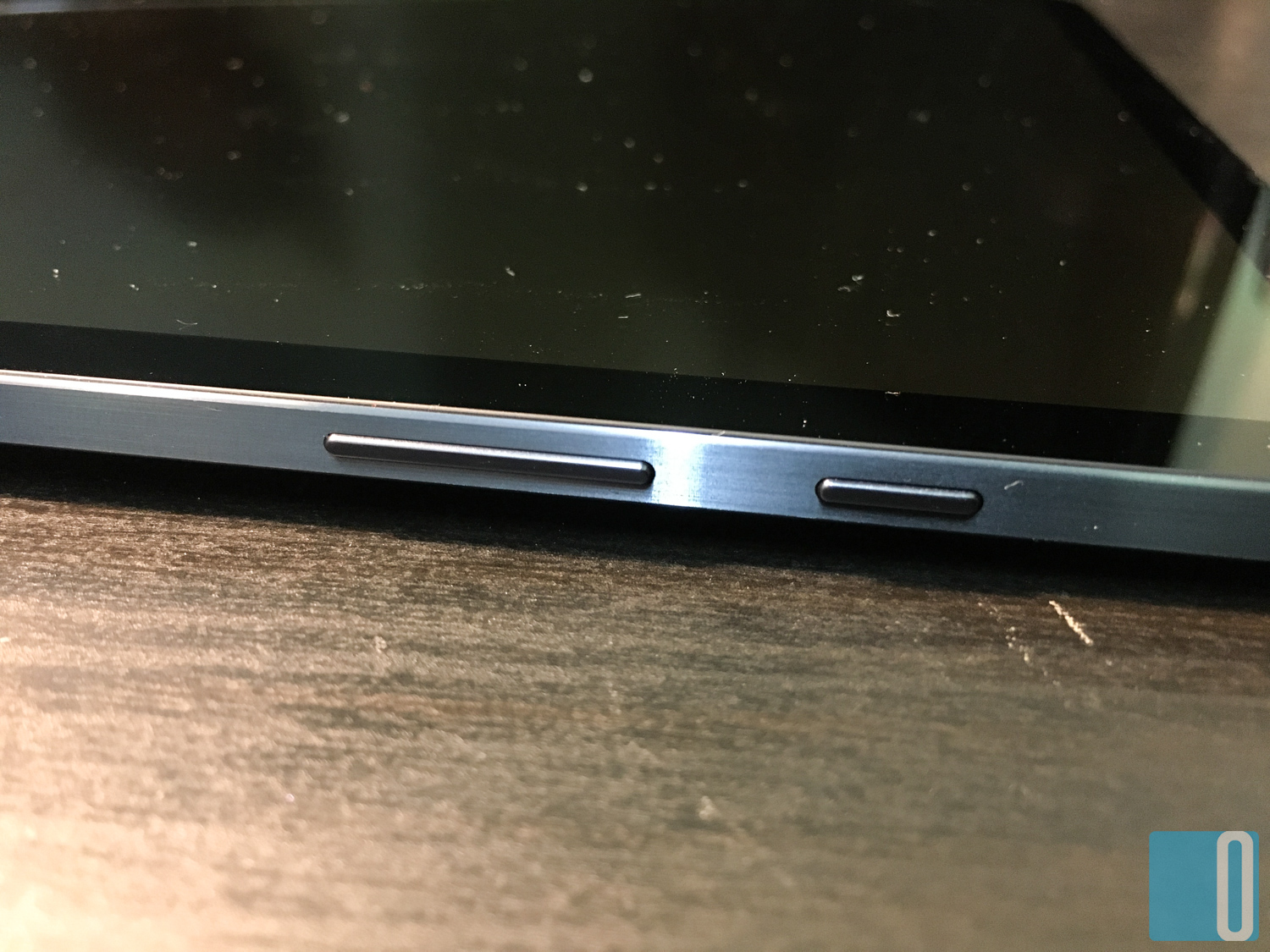
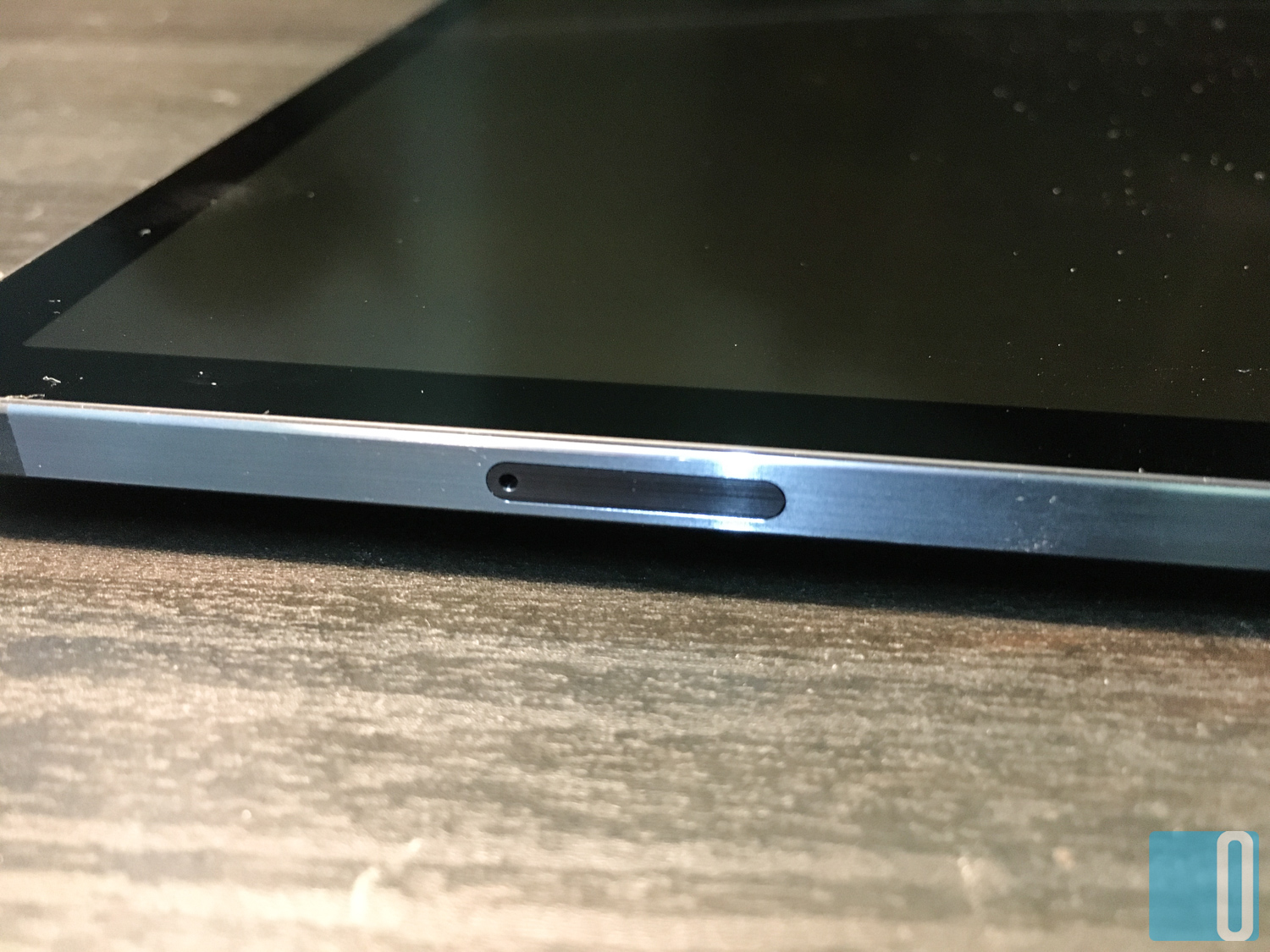
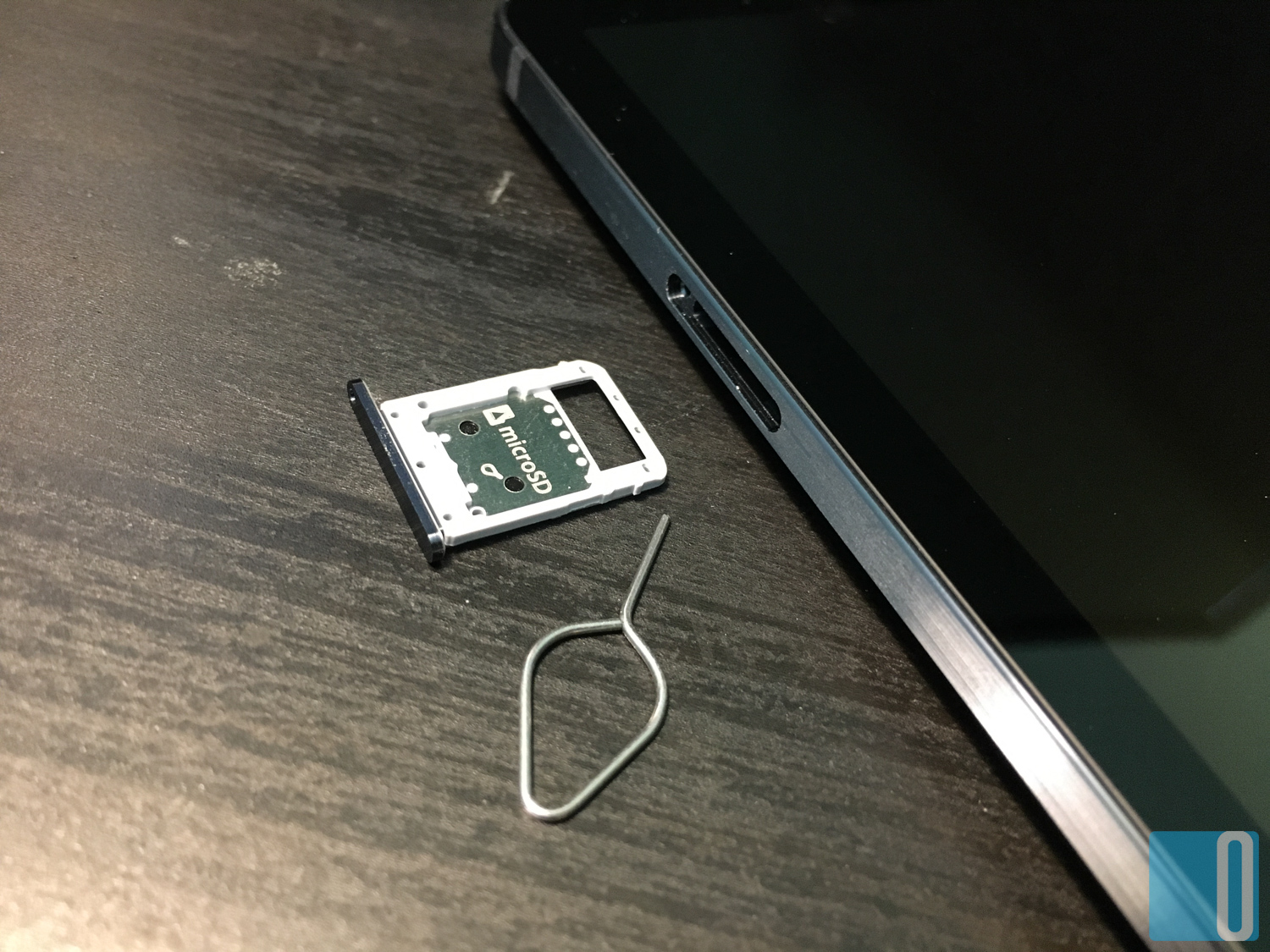
Now I am going to describe the layout differently this time. Holding the Galaxy Tab S7+ in landscape mode, we can see the power button and the volume rocker on the top left side while there is the MicroSD card slot on the top right side. This tab only comes with WiFi only so you won’t be able to put in your SIM card for data use.
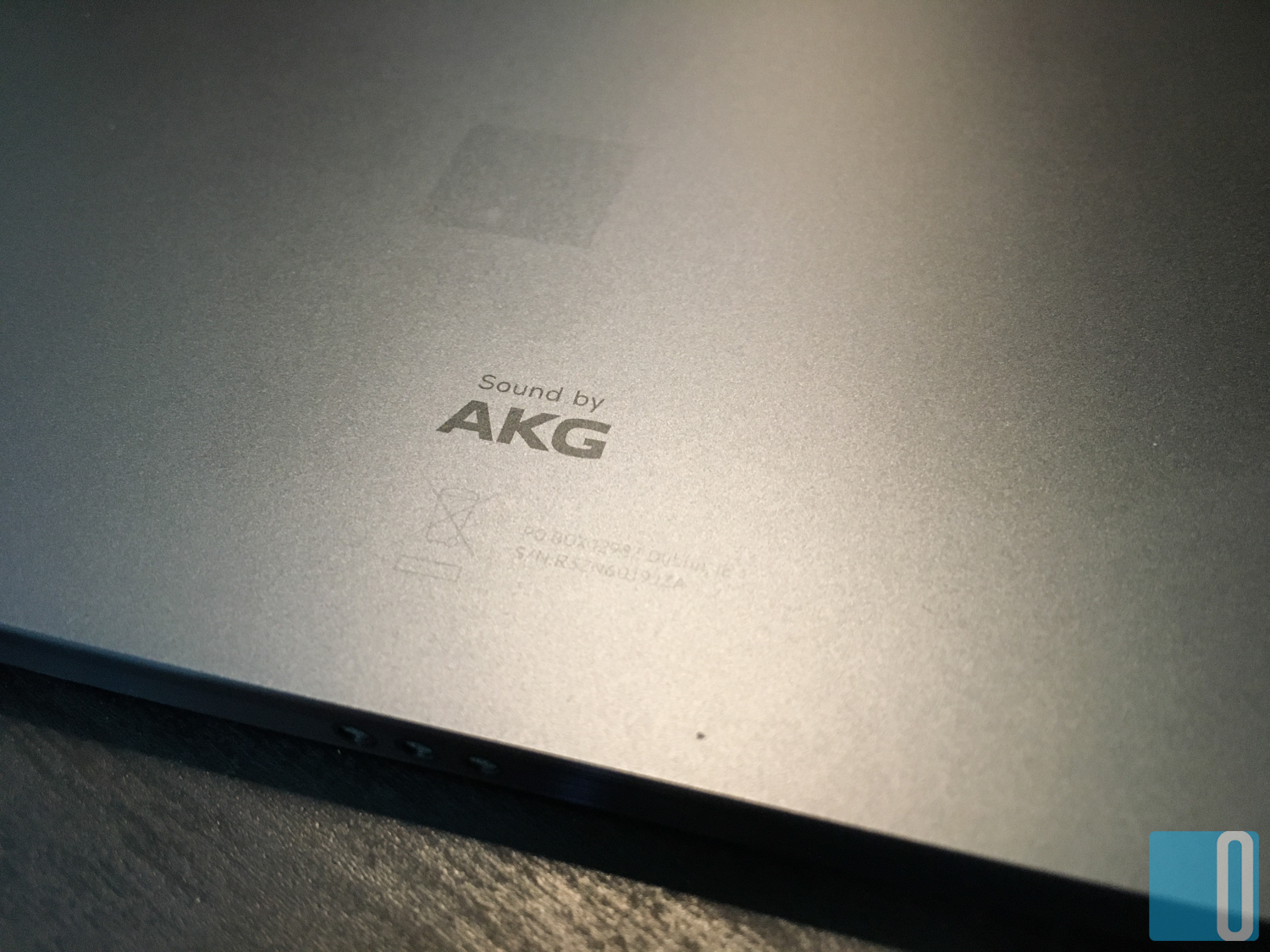
On either sides of the tab, there are 4 speakers in total with two on each side. This gives out the full surround sound experience that is enhanced by Dolby Atmos and tuned by AKG. Speakers are loud and clear. Watching movies on this tablet is totally worth it.
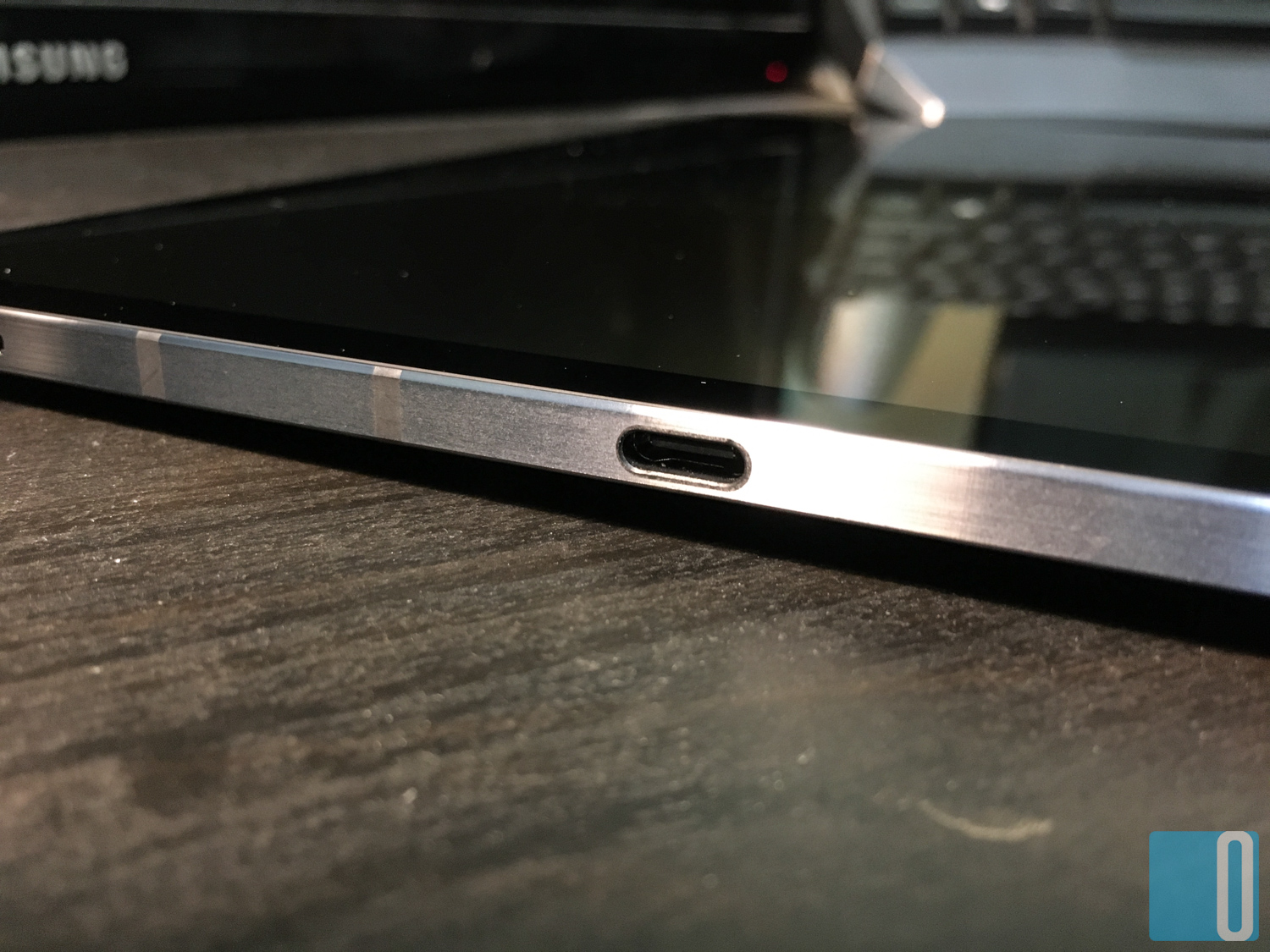
The USB type-C port is located on the right side of the Galaxy Tab S7+, right in the middle between the two right speakers. On the other side, there’s only the mic hole between the two left speakers.
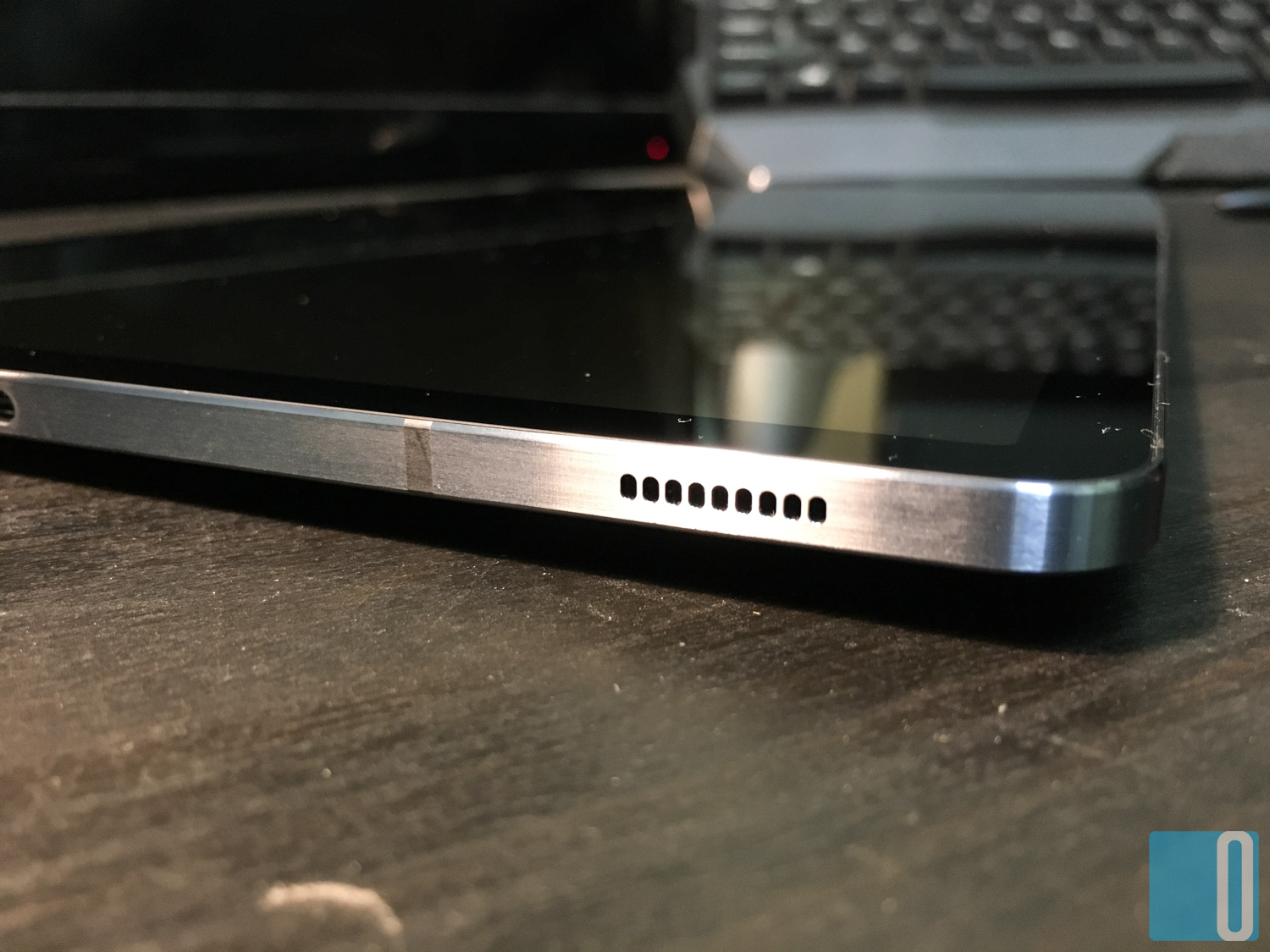
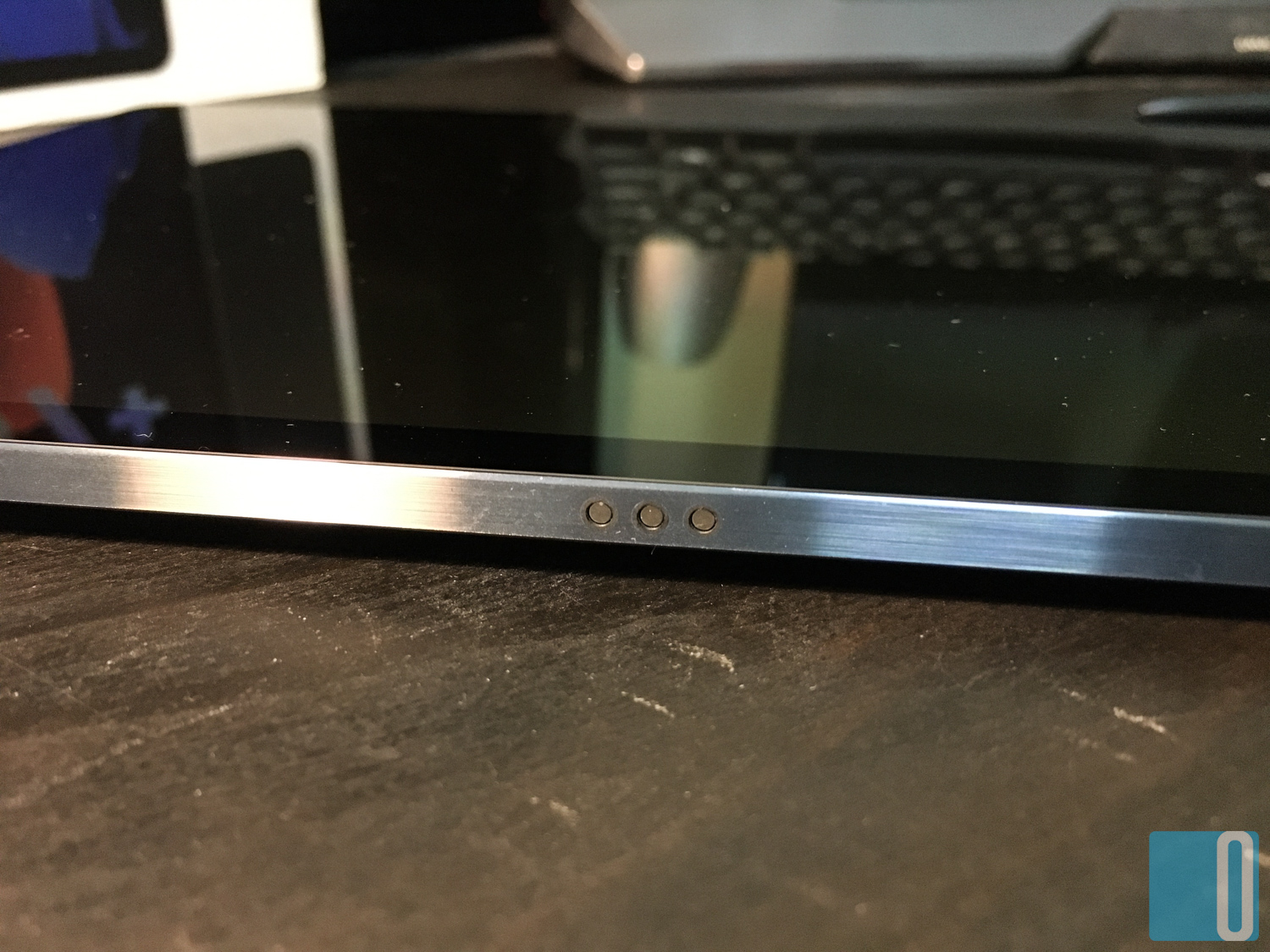
Now at the bottom of the tab, there is the keyboard connector in the middle and two holes on the left and right side for the placeholder slot to attach the keyboard. Also, the keyboard will stick to the tab with magnet that holds it in place. So yes, you can attach and detach the keyboard whenever you need it or don’t need it. Also to note that when you attach the keyboard, the device will notify whether you want to switch to Samsung Dex mode or remain in tablet mode.
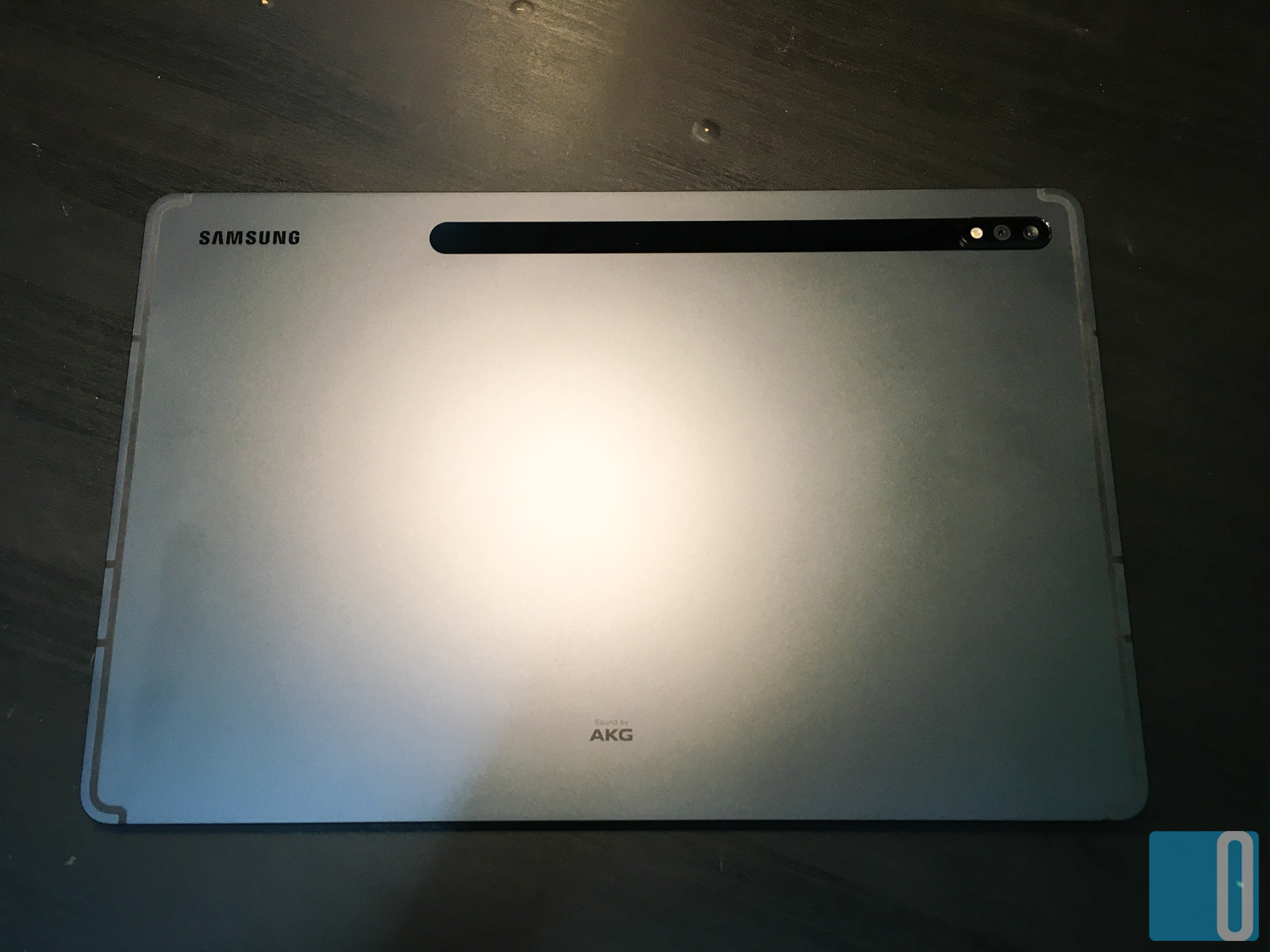
At the back of the tablet (still looking in landscape mode), the dual camera setup is located at the top right side. Next to it in the top middle part is a magnetised strip to attach the S-Pen onto the tablet. The S-Pen will be charged wirelessly when it is attached at the back. And the magnet is pretty strong too, holding the S-Pen in place even when I was moving a lot.
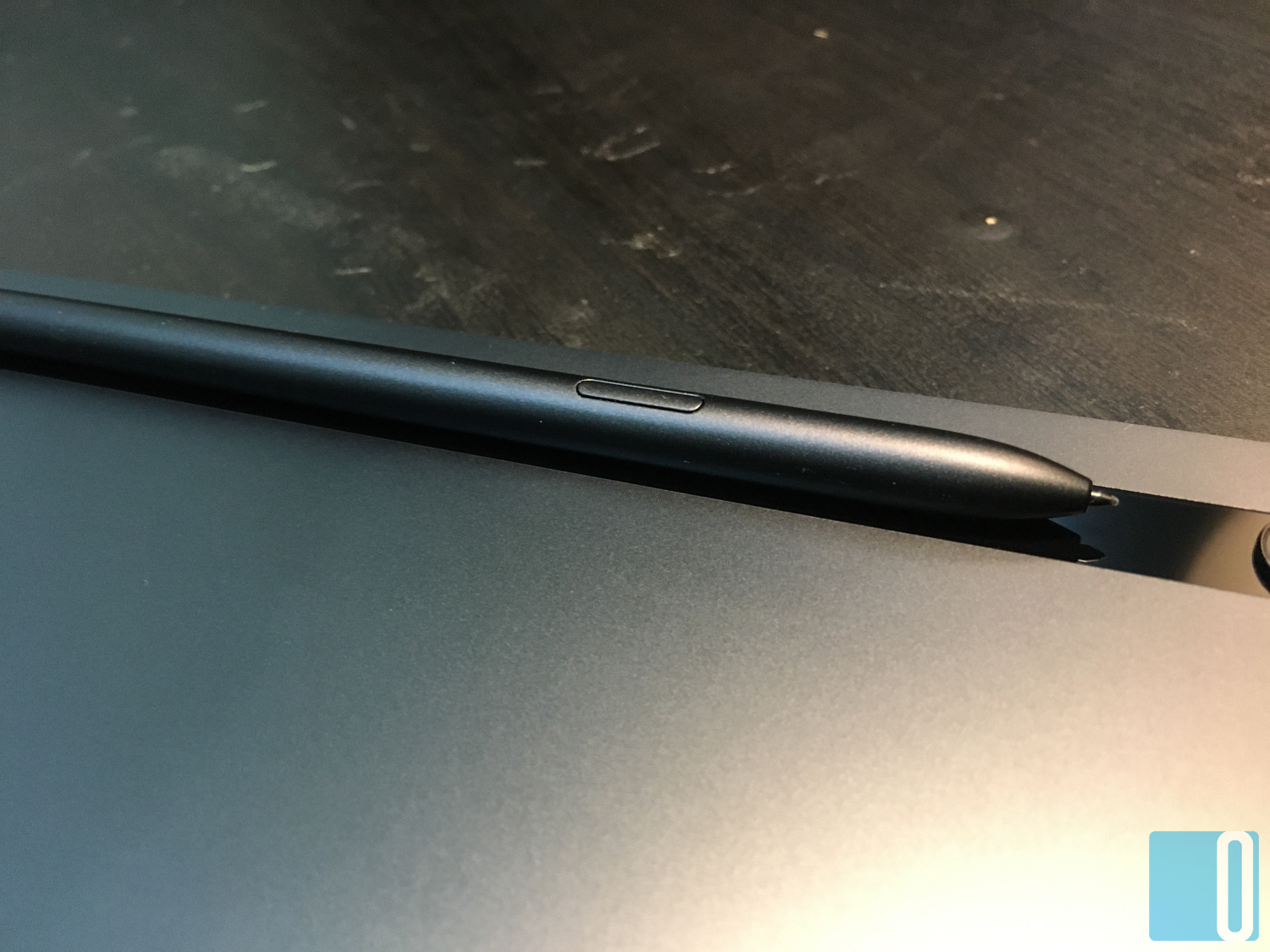
Now the back cover attached to the tab with magnet as well. Once it is attached, it feels sturdy and you know it won’t come off. At the top part, there is an opening pocket that covers the S-Pen perfectly. It also acts as a storage space for the S-Pen so that you won’t lose it. Now you can lift up the flap at the bottom part of the back cover to create a stand for the tablet, letting you use the tab like a laptop.
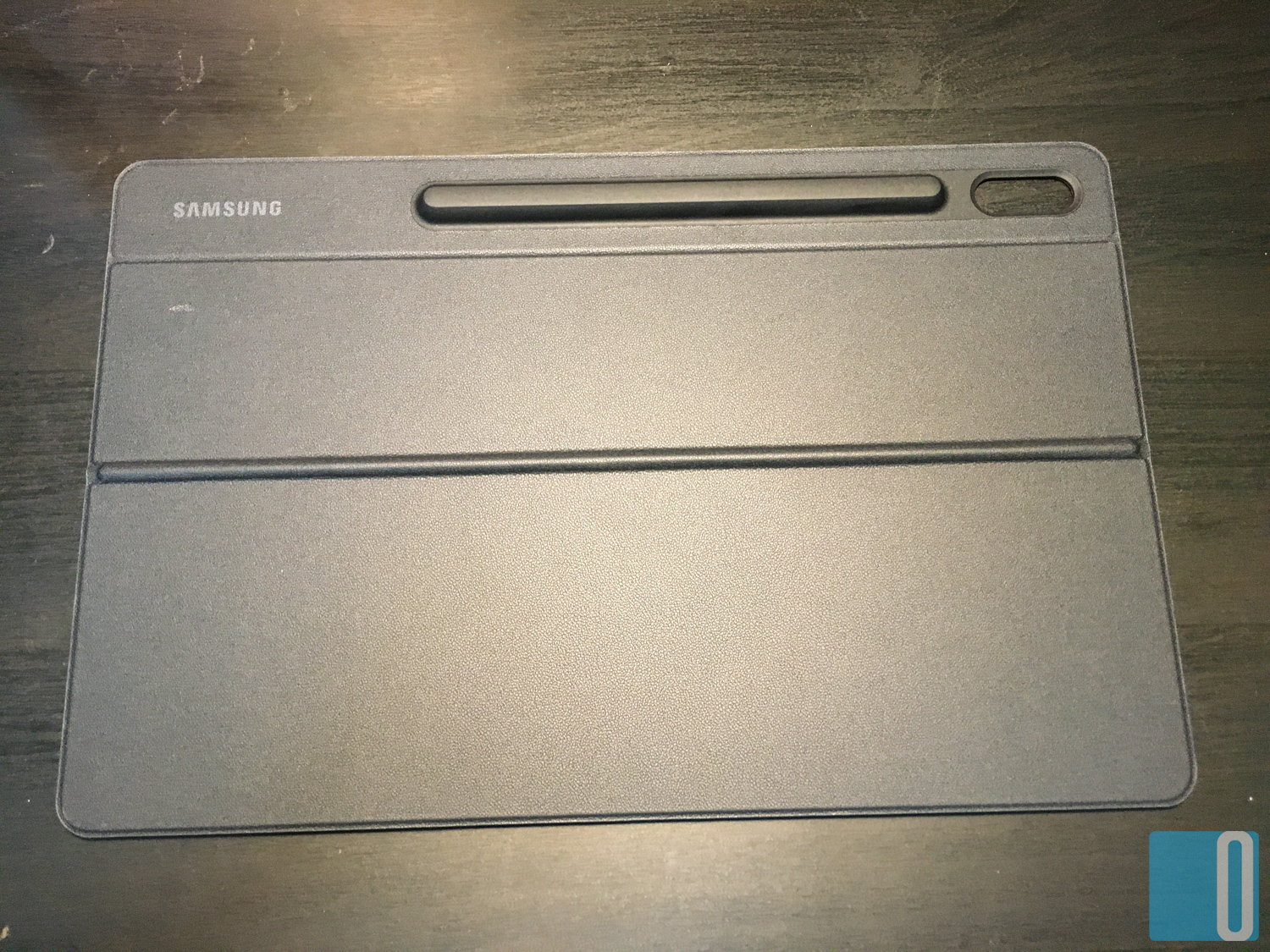
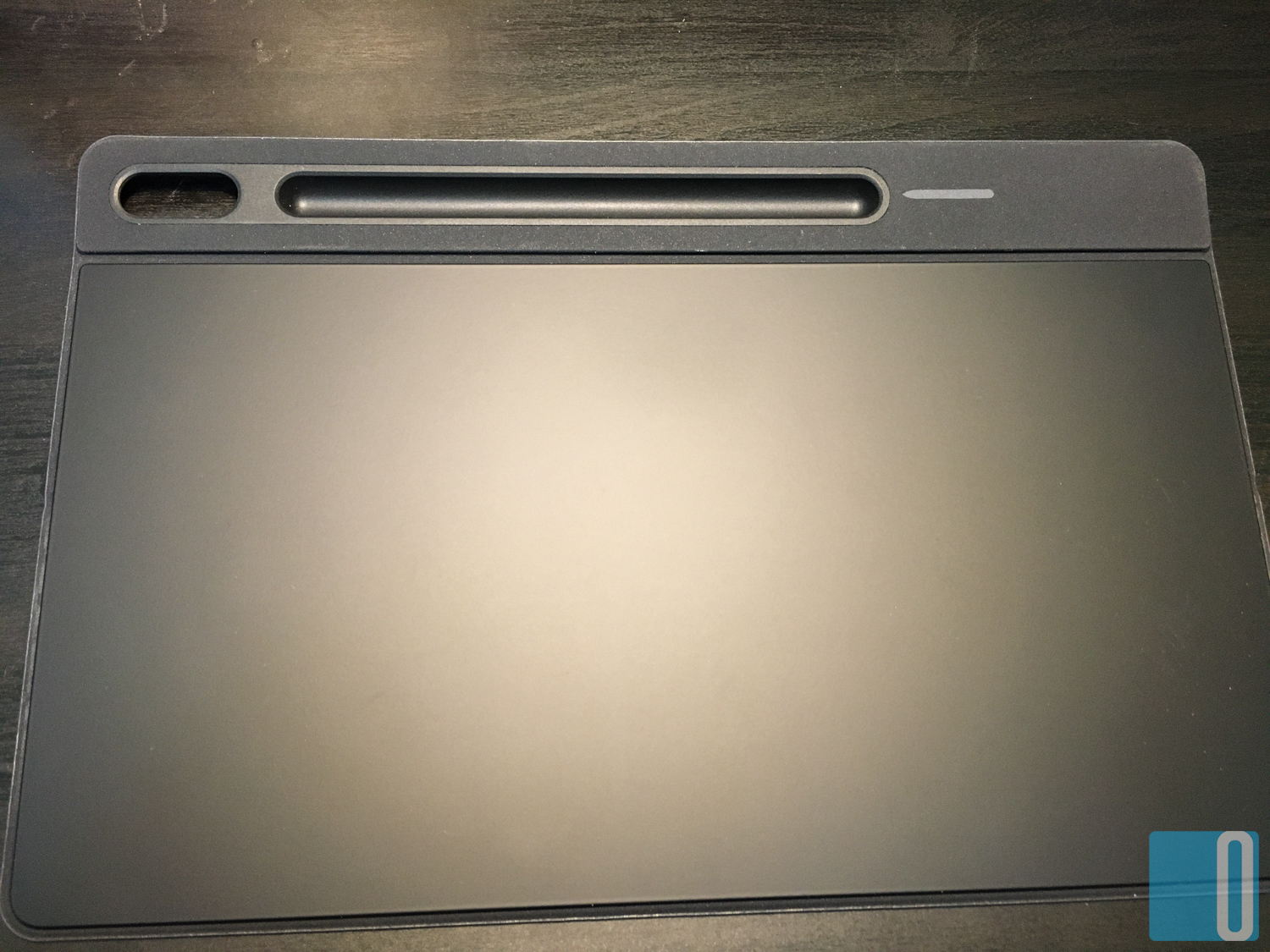
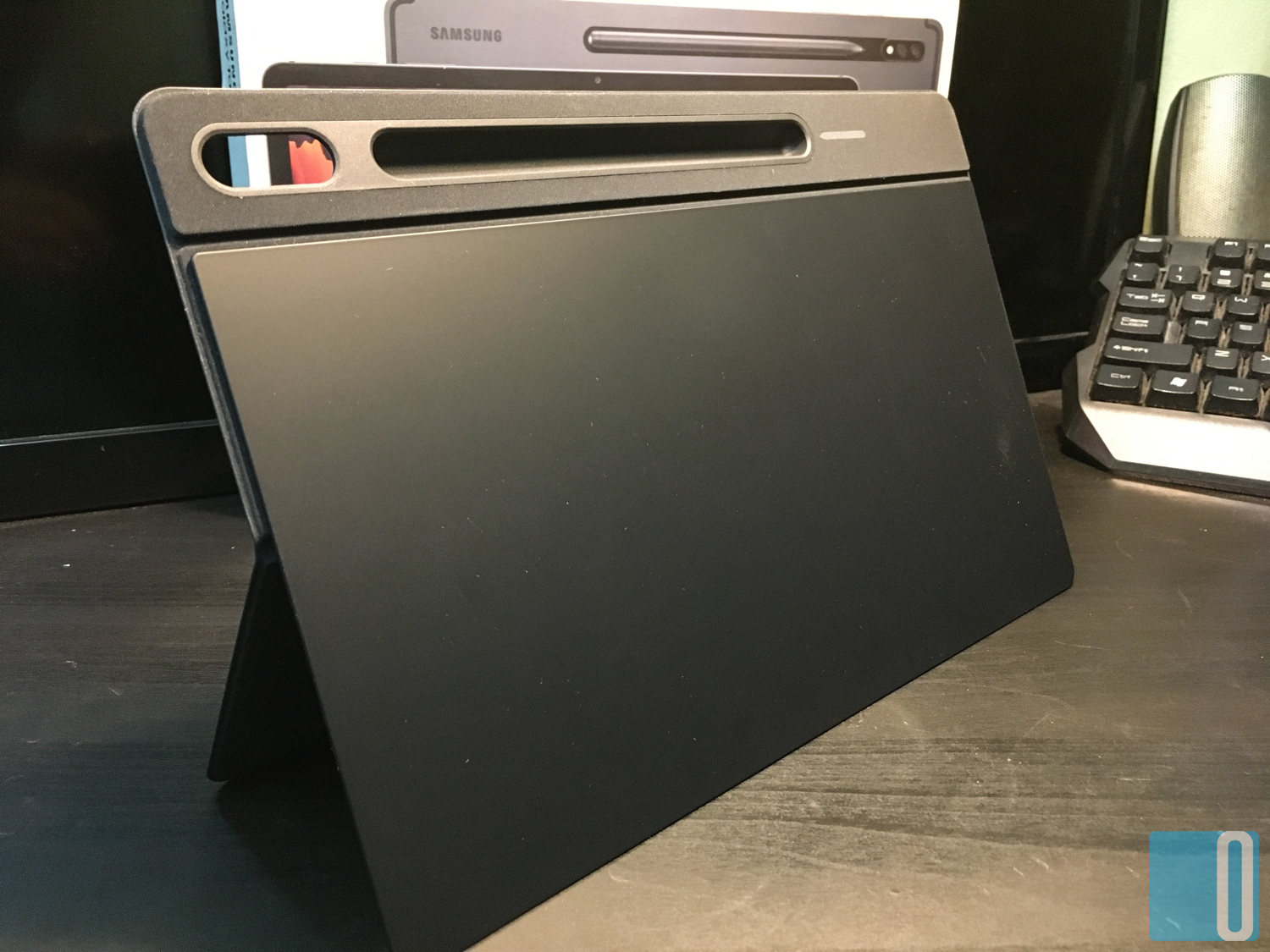
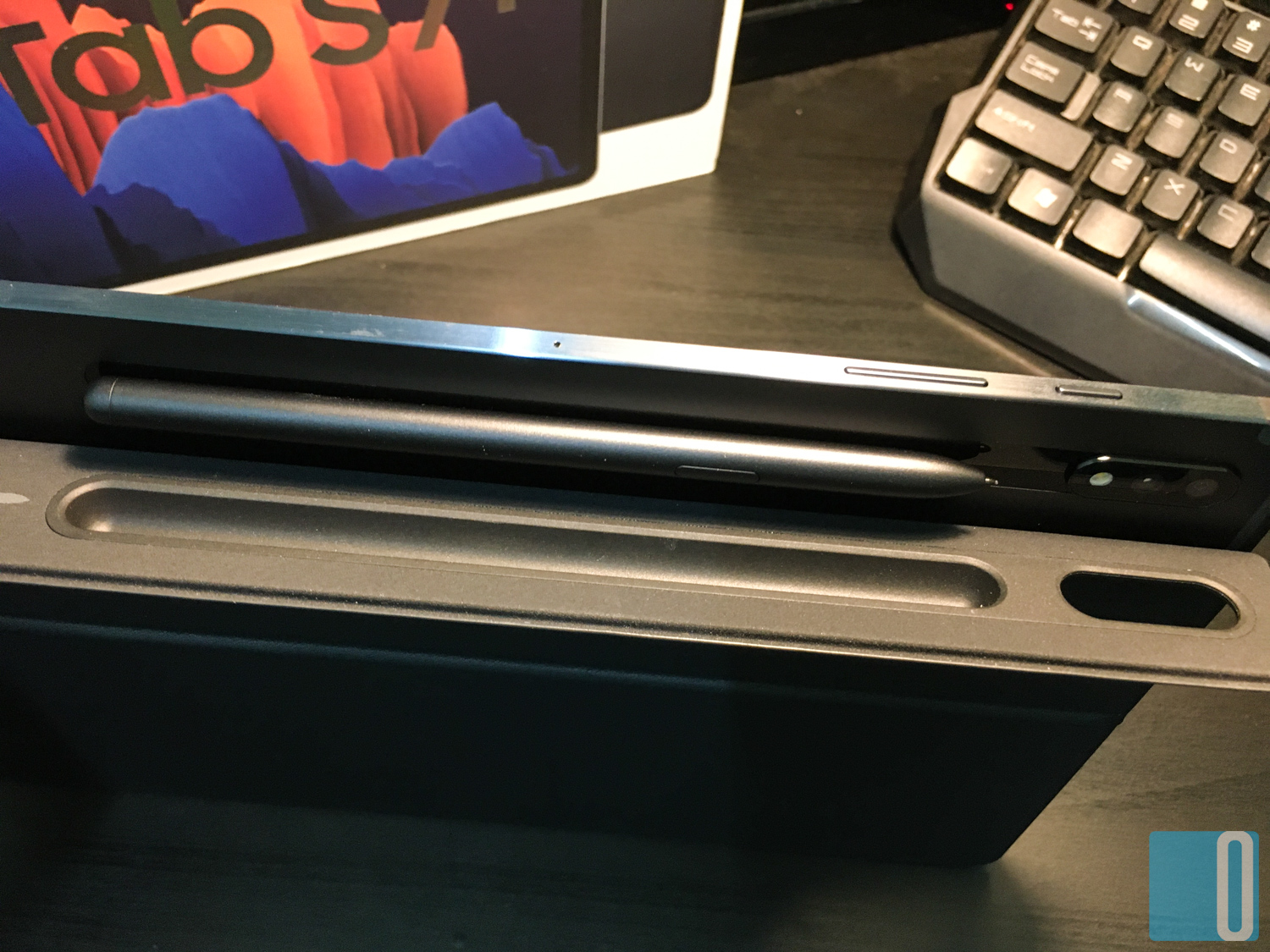
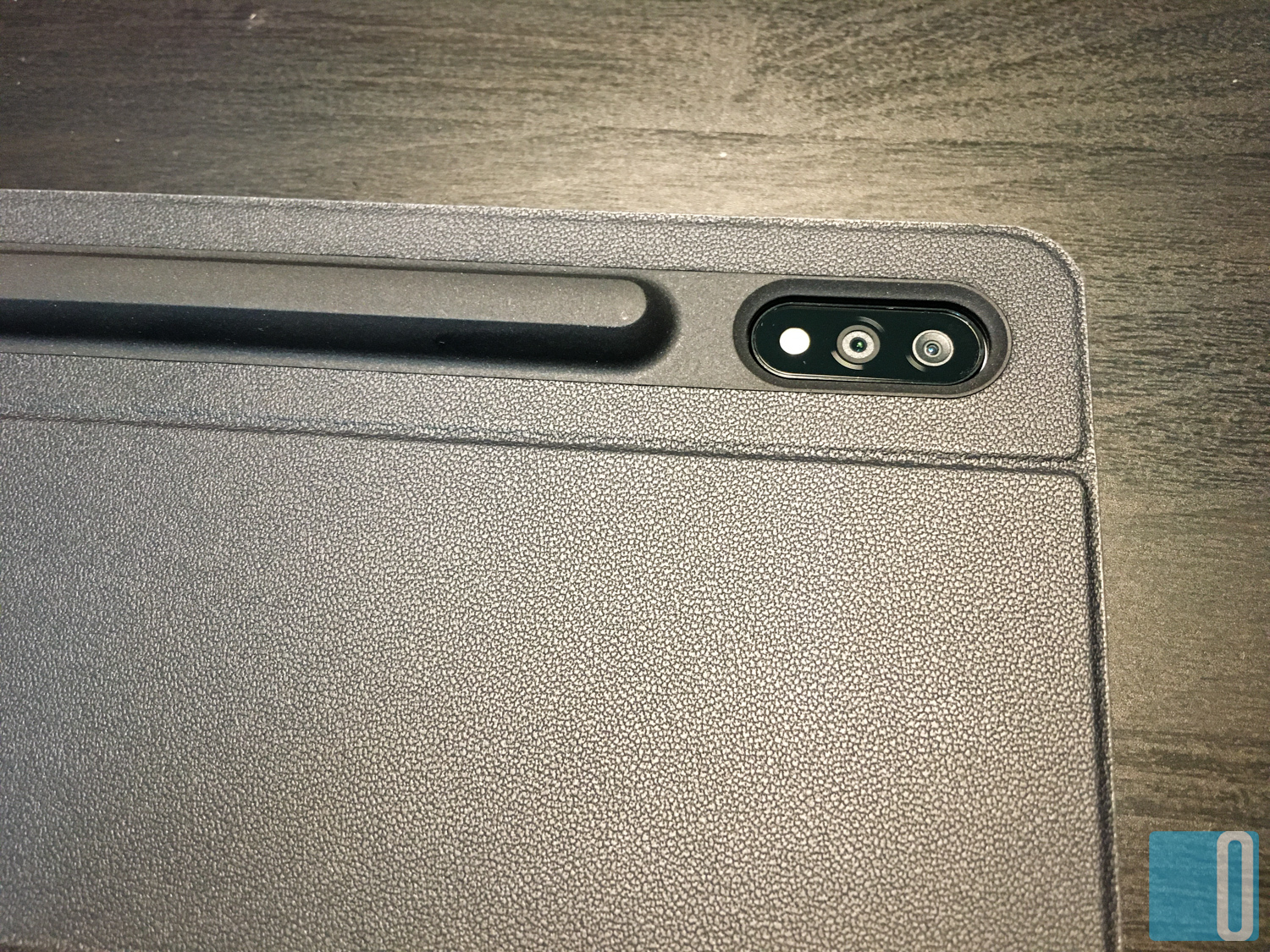
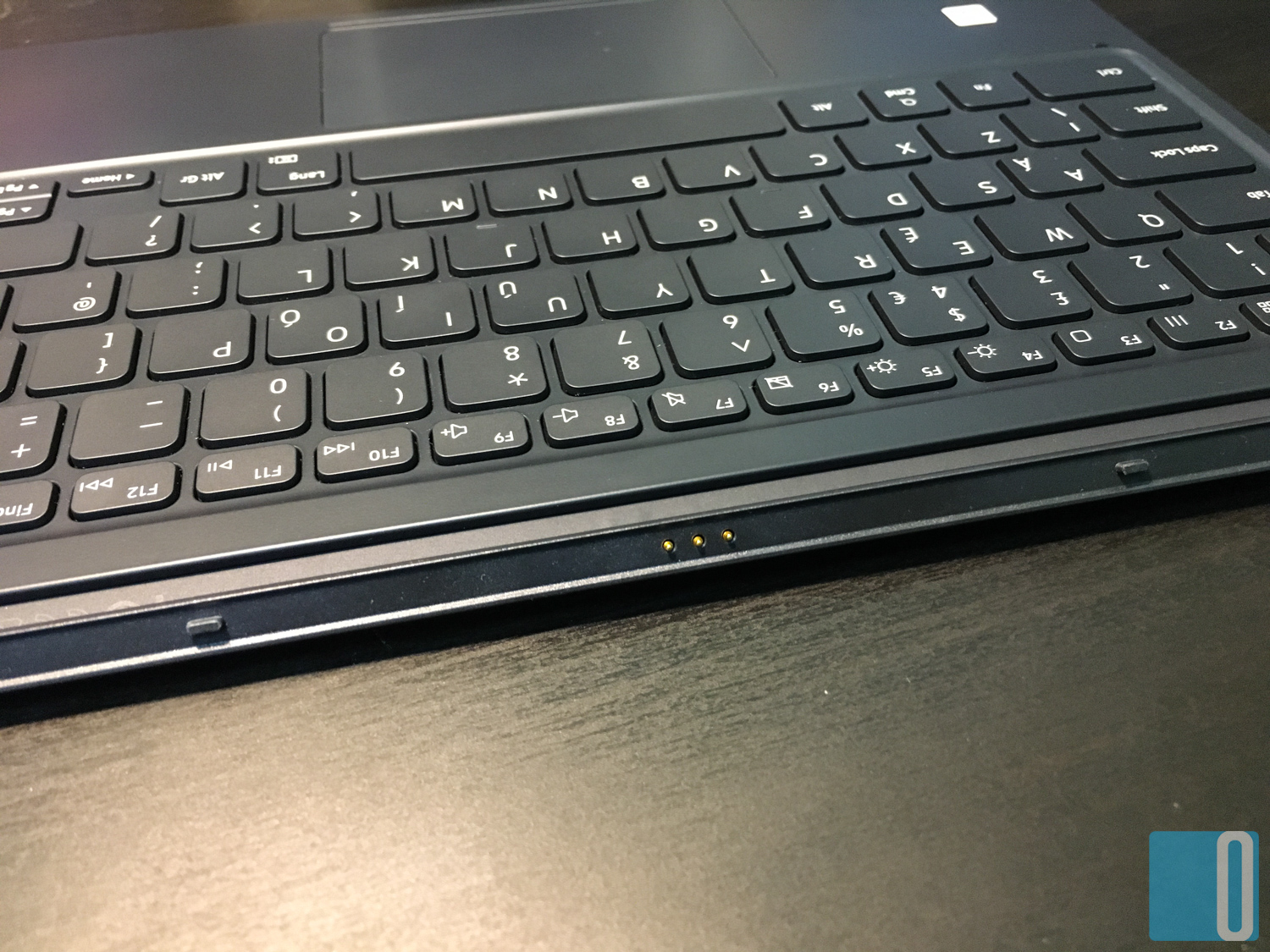
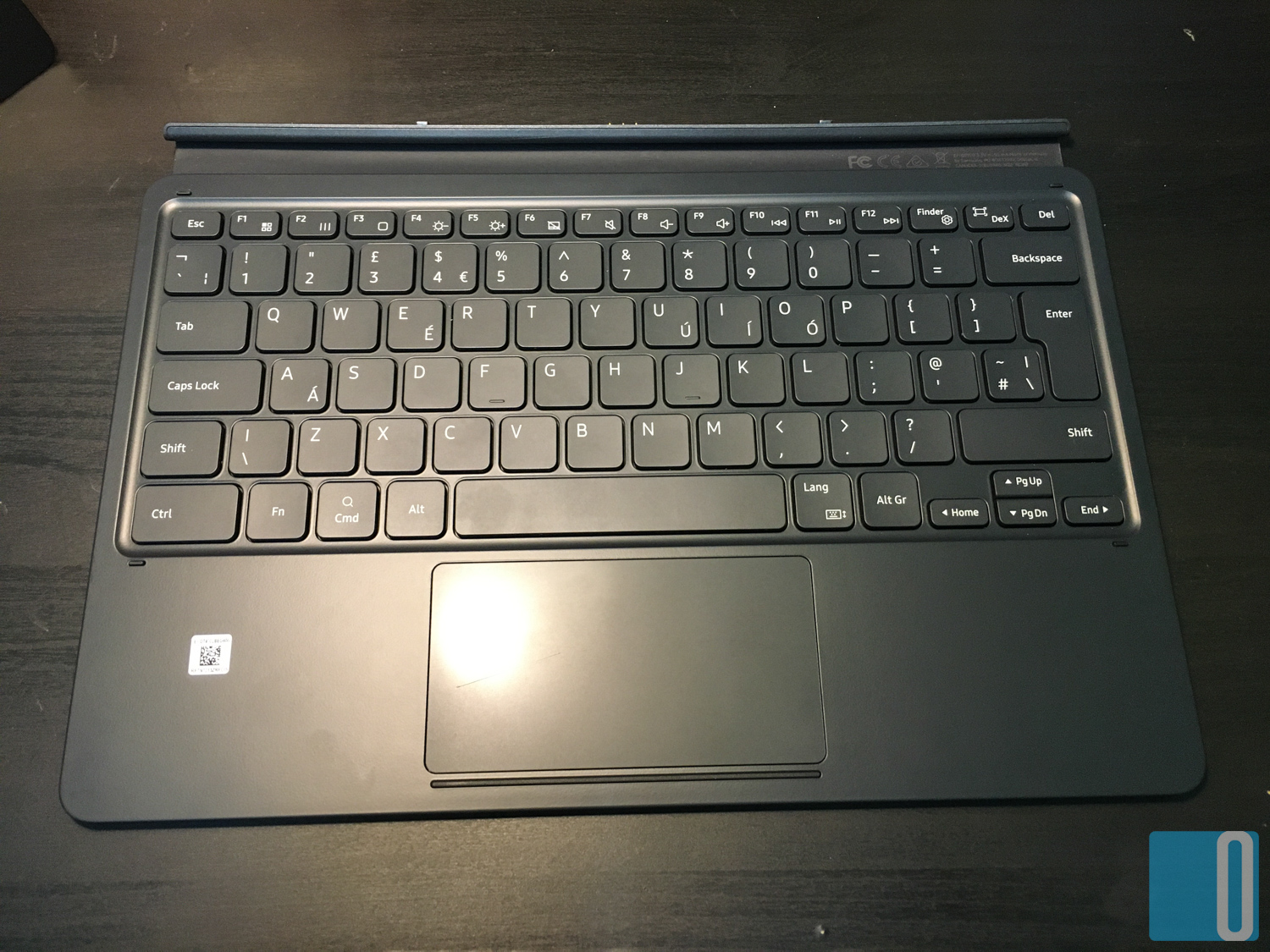
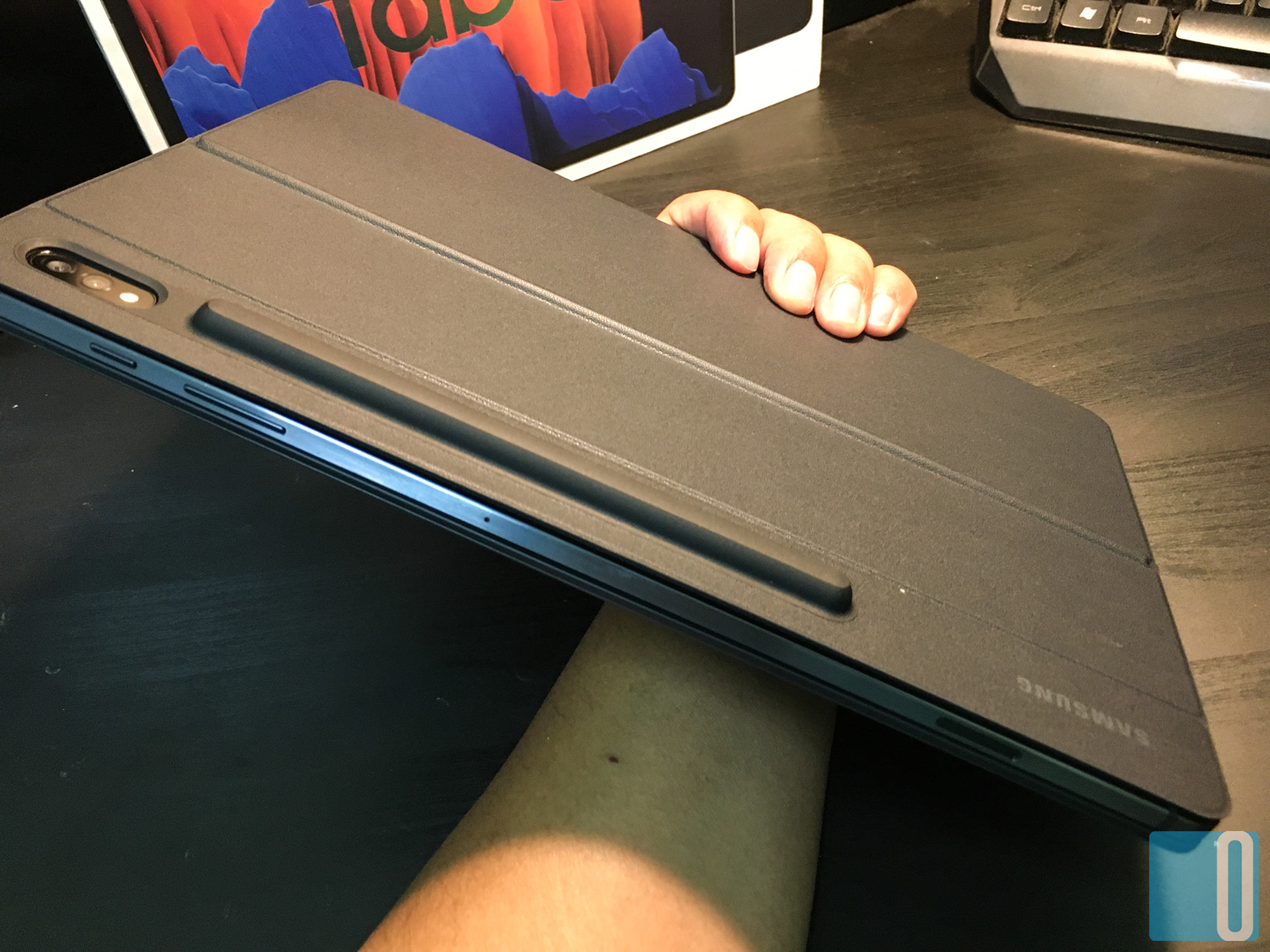
I like the feel of the whole book cover keyboard when it is fully attached to the Galaxy Tab S7+. Everything feels right in place. And it is very easy to quickly convert the device from tablet mode into laptop mode.
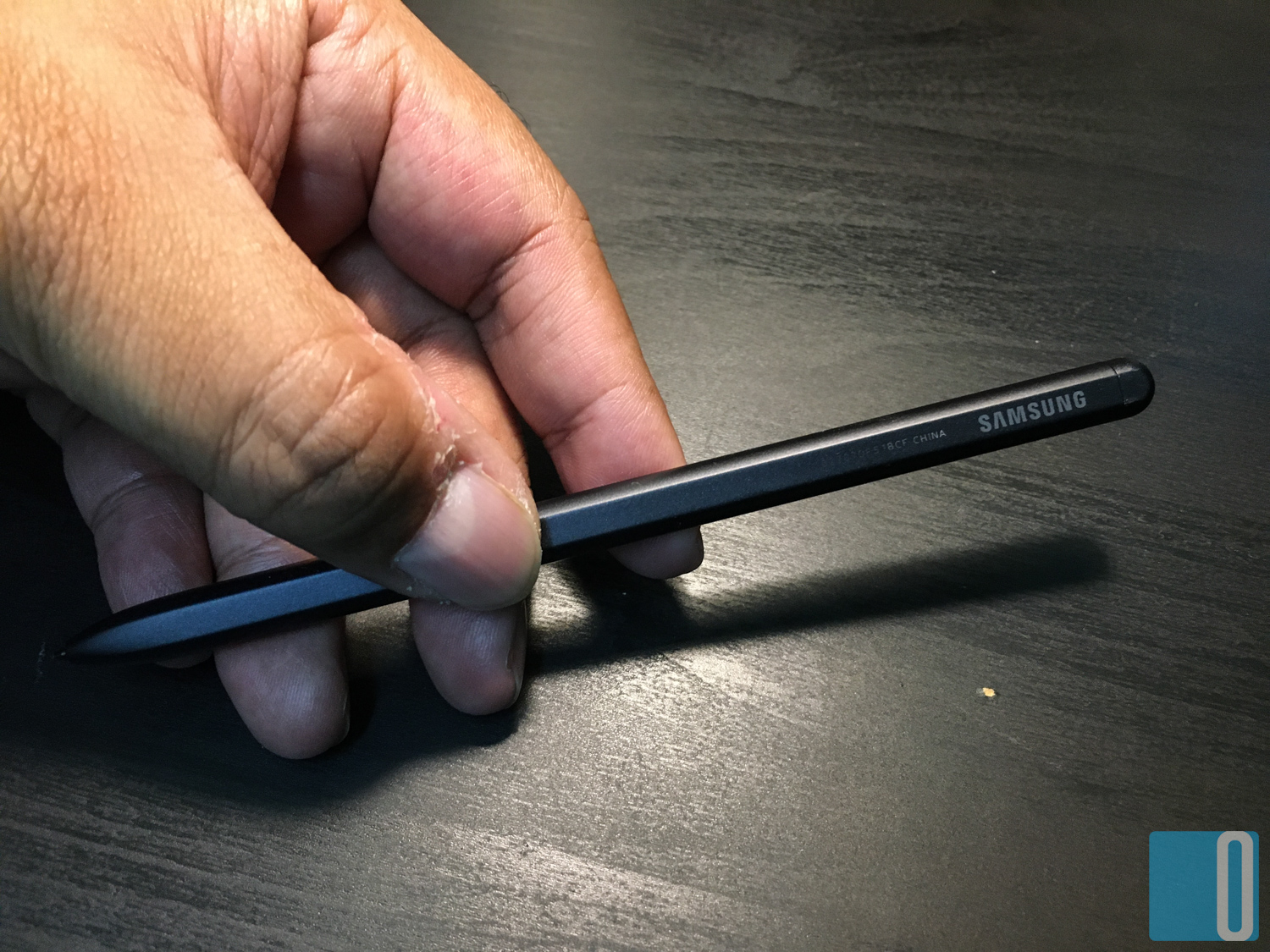
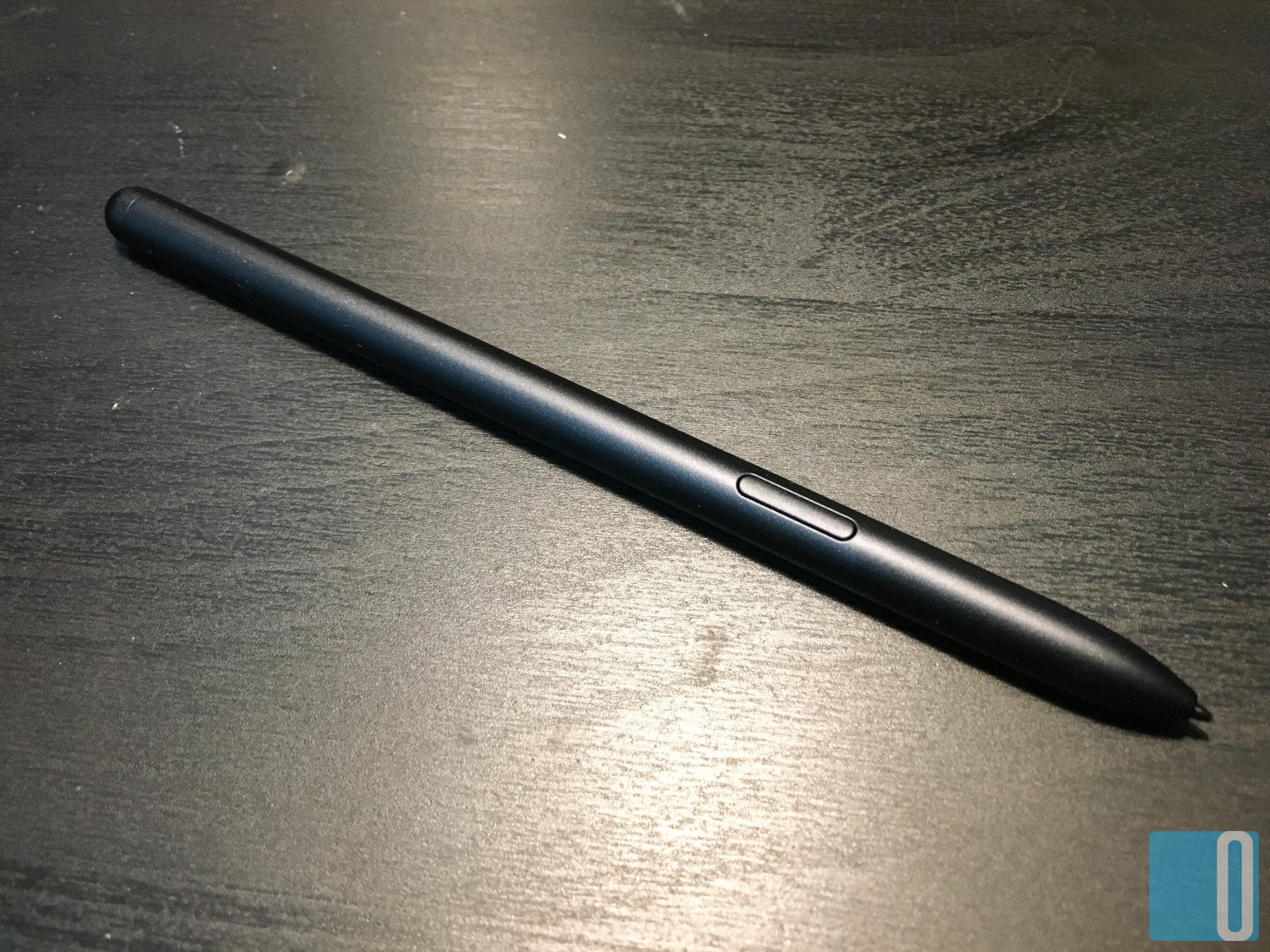
The S-Pen has been upgraded from the one on the Tab S6. The super responsive and high precision input by the S-Pen onto the display is superb. I can say that it is 5x more precise than on the previous Tab S6 and much, much smoother to use. I enjoyed my time scribbling and writing on this Tab S7+, and again it made my handwriting so much nicer.
And this is how it looks like at its full glory.
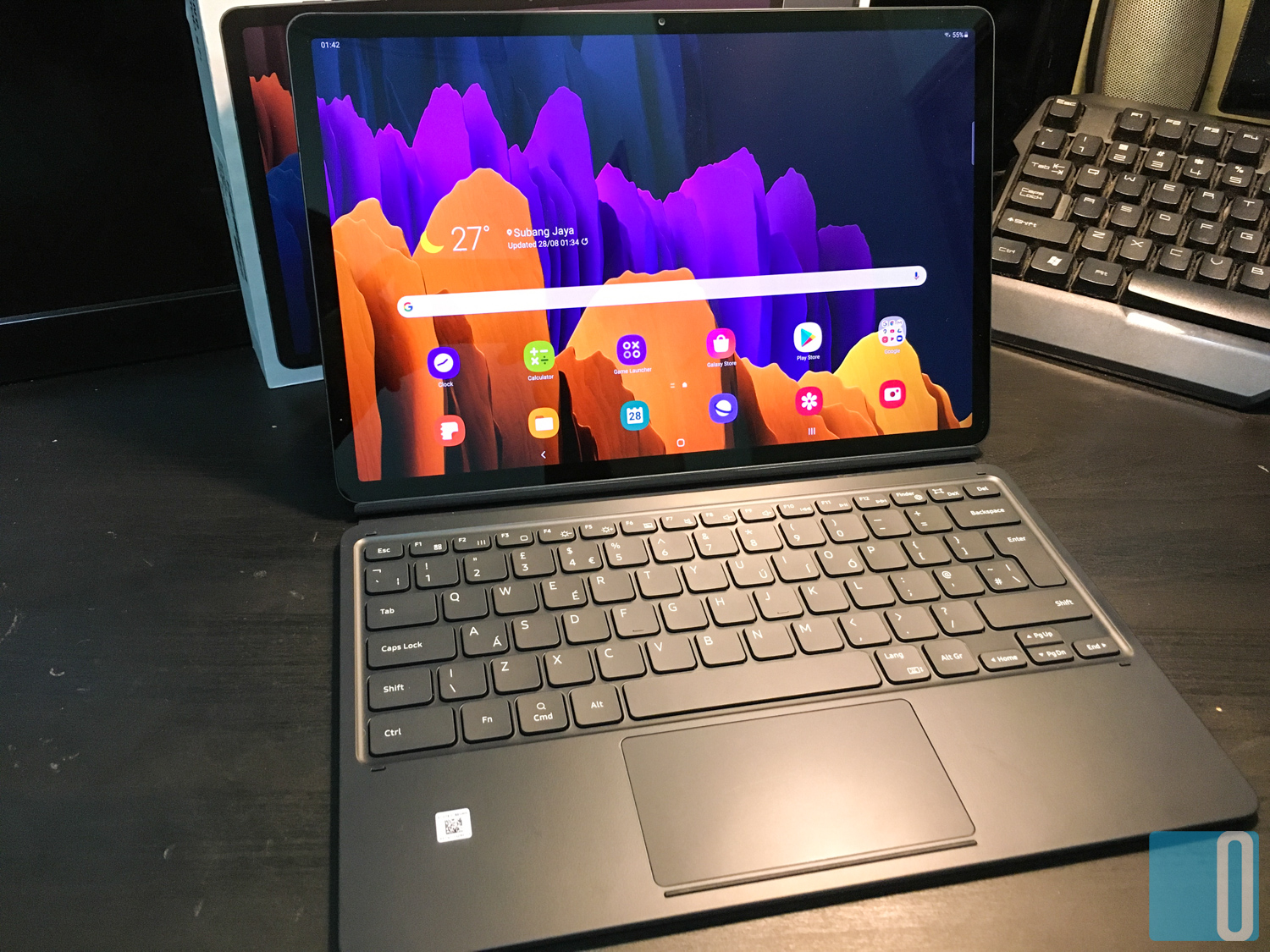
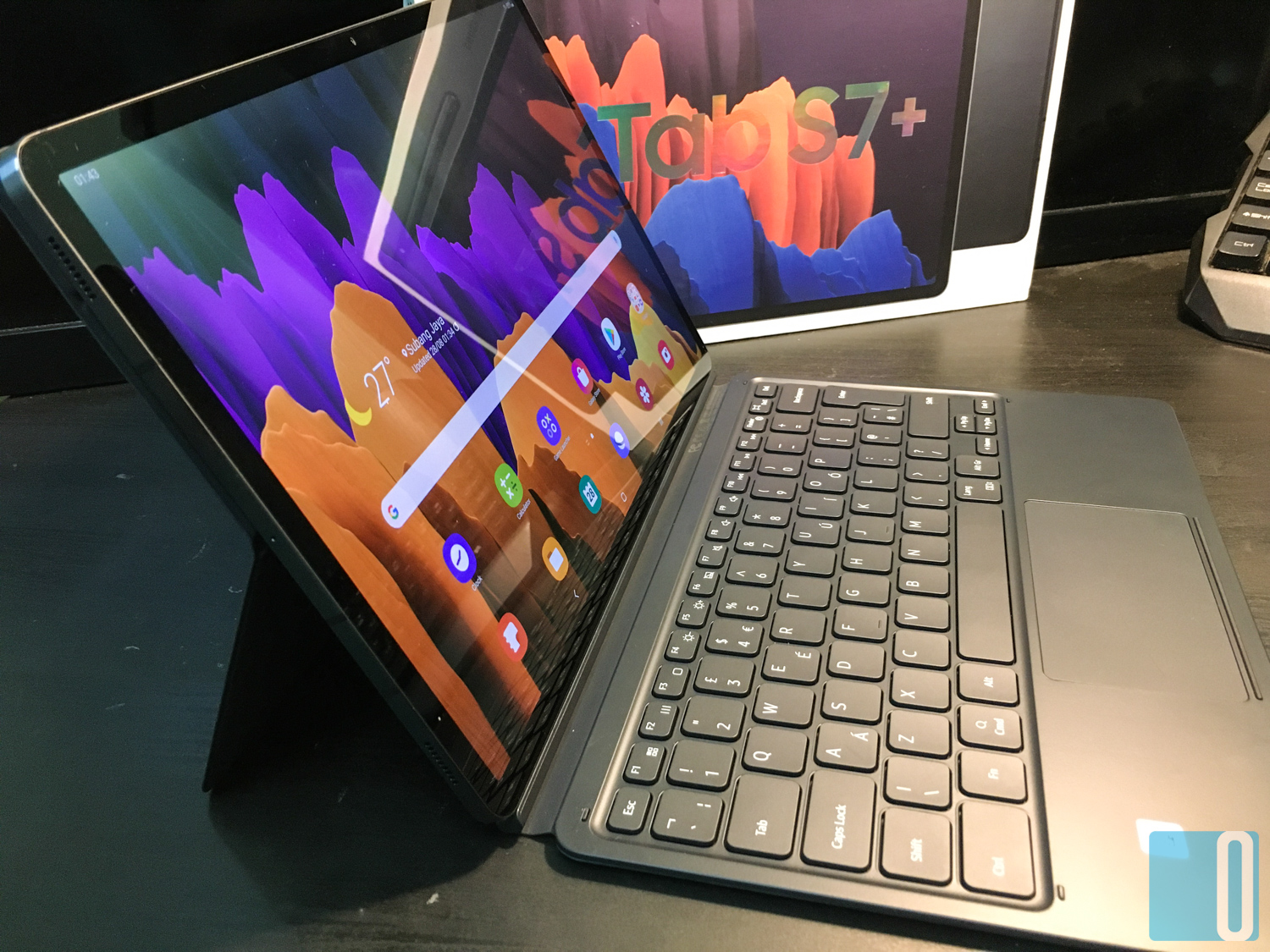
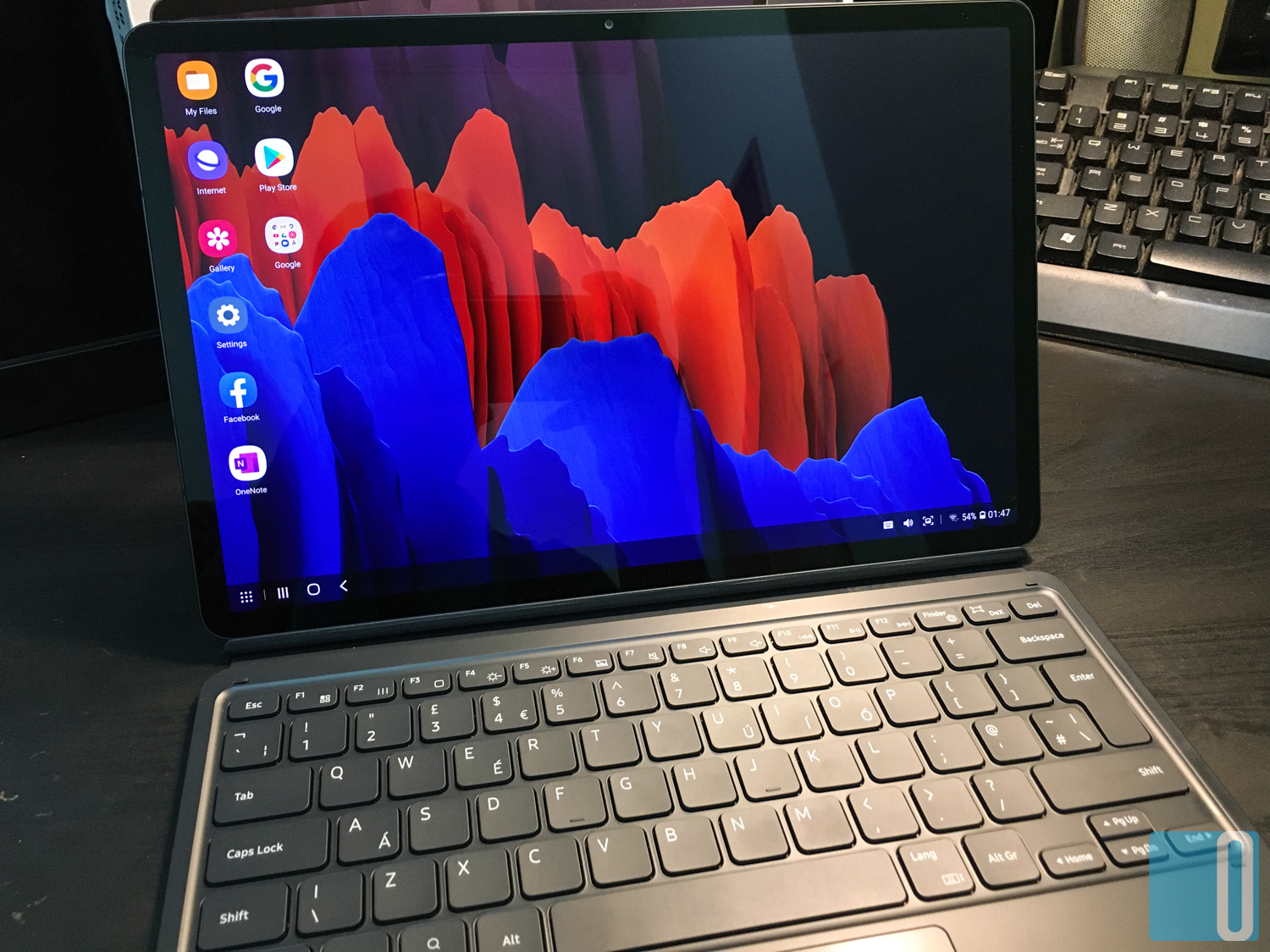
Speaking of full glory, here are the full specification of the new Galaxy Tab S7+:
- SoC: Qualcomm SM8250 Snapdragon 865+ (7 nm+), Octa-core (1×3.09 GHz Kryo 585 & 3×2.42 GHz Kryo 585 & 4×1.8 GHz Kryo 585
- GPU: Adreno 650
- OS: Android 10, One UI 2.5
- Memory: 128GB 6GB RAM, 256GB 8GB RAM, 512GB 8GB RAM
- Display:
Super AMOLED capacitive touchscreen, 16M colors
12.4 inches, 446.1 cm2 (~84.6% screen-to-body ratio)
1752 x 2800 pixels, 16:10 ratio (~266 ppi density)
HDR10+, 120Hz refresh rate - Battery: Li-Po 10,090 mAh, non-removable, Fast charging 45W
- Camera:
13 MP, f/2.0, 26mm (wide), 1/3.4″, 1.0µm, AF
5 MP, f/2.2, 12mm (ultrawide), 1.12µm - Selfie Camera: 8 MP, f/2.0, 26mm (wide), 1/4″, 1.12µm
- Sensors: Fingerprint (under display, optical), accelerometer, gyro, proximity, compass, Samsung DeX
- Colours: Mystic Black, Mystic Bronze, Mystic Silver
Performance & Usage
Now the idea of using a tablet is more towards productivity and work. The smaller tablets such as the Tab A series by Samsung are focused on multimedia and handling simple work tasks such as taking notes and reading. I do have my own personal Tab A device that I use on daily basis, mainly for social media management and digital marketing work. Simple and reliable. That’s all it is for.
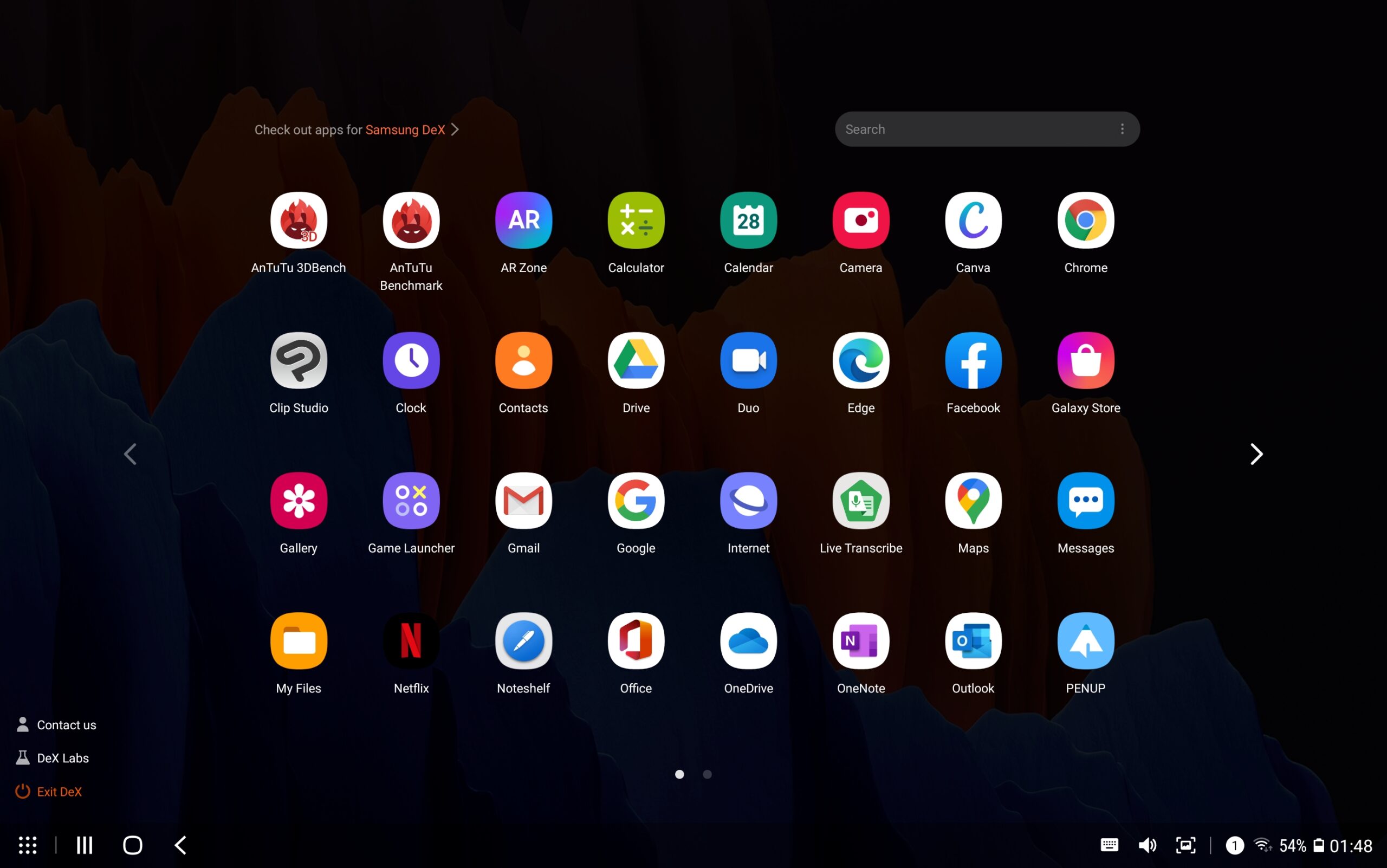
As for this bad boy, I can do more than that. It is a tablet and a full fledged laptop all thanks to the Samsung Dex mode. With Samsung Dex, it feels more familiar. The layouts are similar to what we are used to on a desktop PC. Only difference is that this is fully Android and touch screen. Browsing, switching screens and tabs, scrolling and the whole user experience are optimised to be more intuitive for anyone. I think I spent more time in Samsung Dex mode rather than tablet mode.
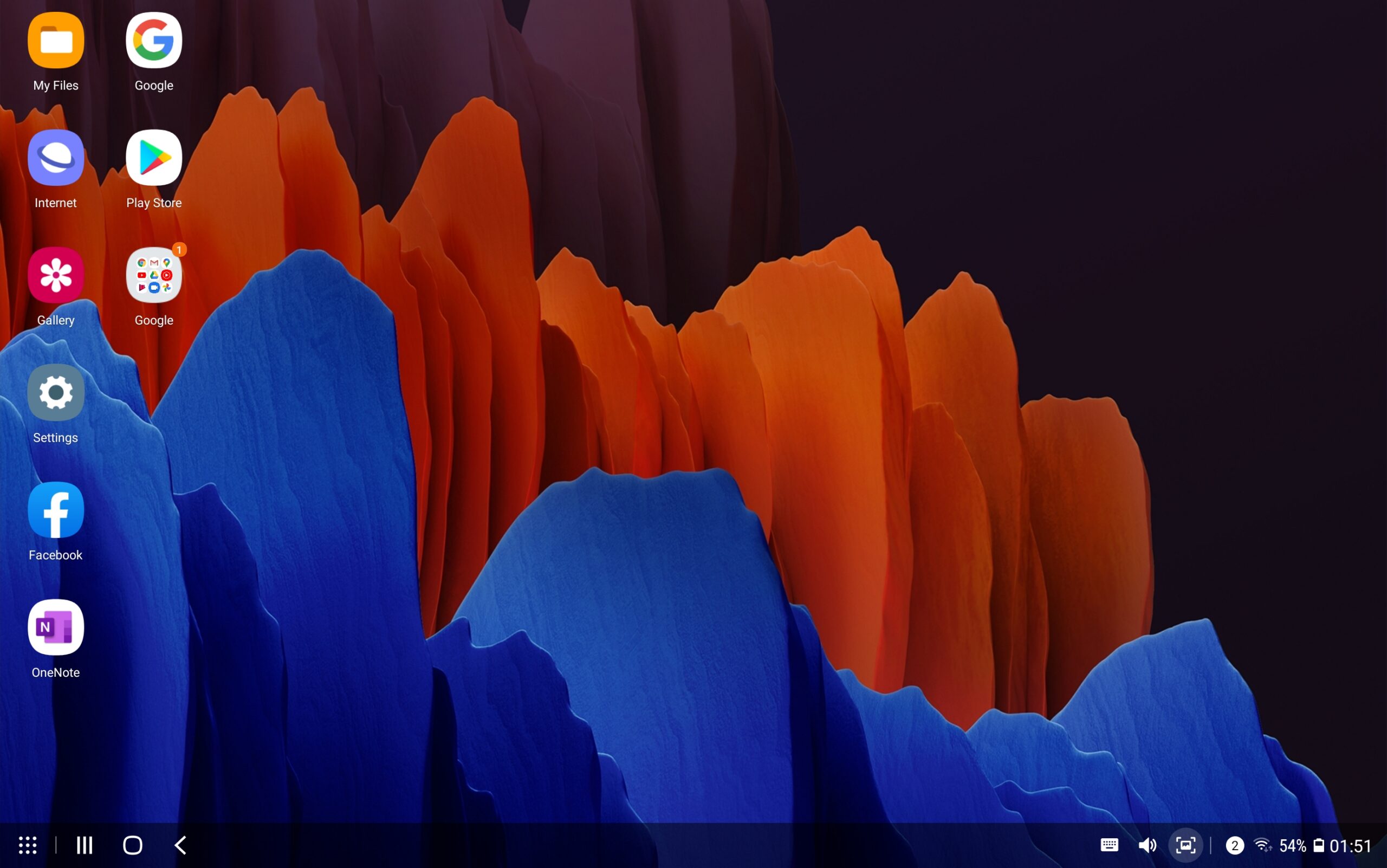
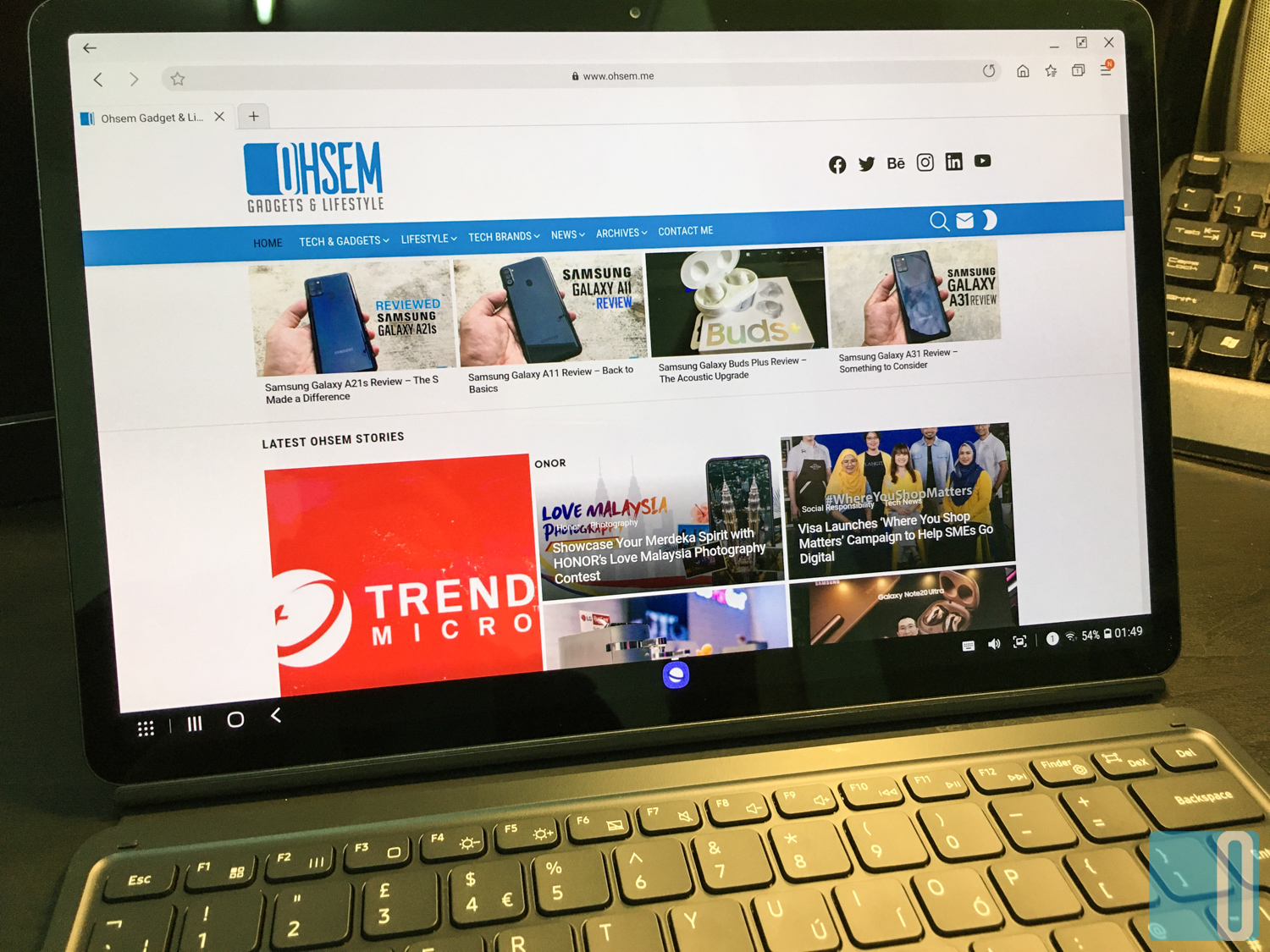
But you don’t have to be in Dex mode all the time too. Normal tab mode worked just as well. My first initial browsing experience works better than my normal desktop PC. Pages somehow loads much faster, all thanks to the super fast and powerful Snapdragon 865+ SoC coupled with 8GB of RAM and 256GB of storage. This website loads within 1 second the first time it fired up. That to me is bloody fast. My usual laptop took about 8 seconds to fully load but the Galaxy Tab S7+ took only 1 second. That is a huge difference in speed.
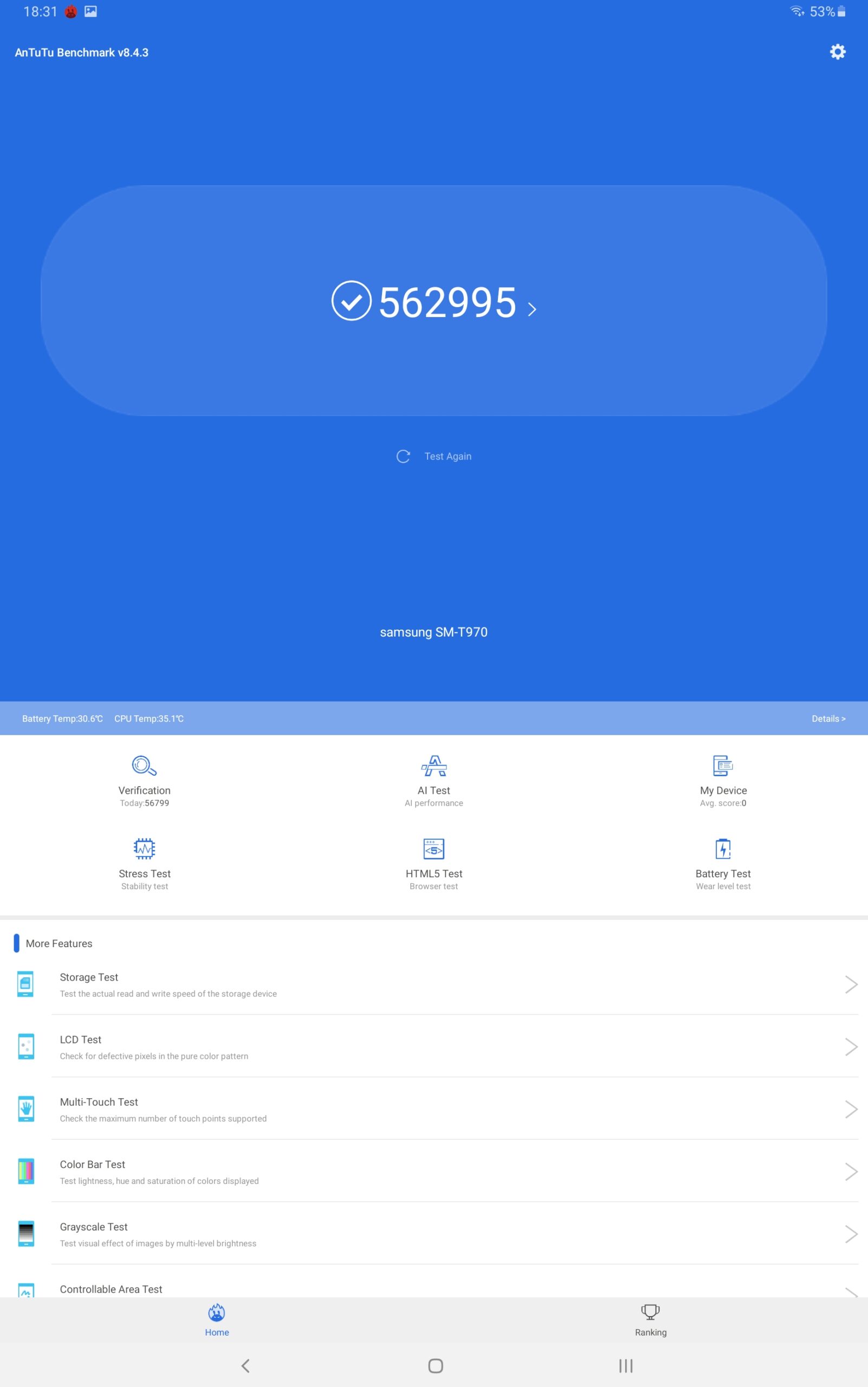
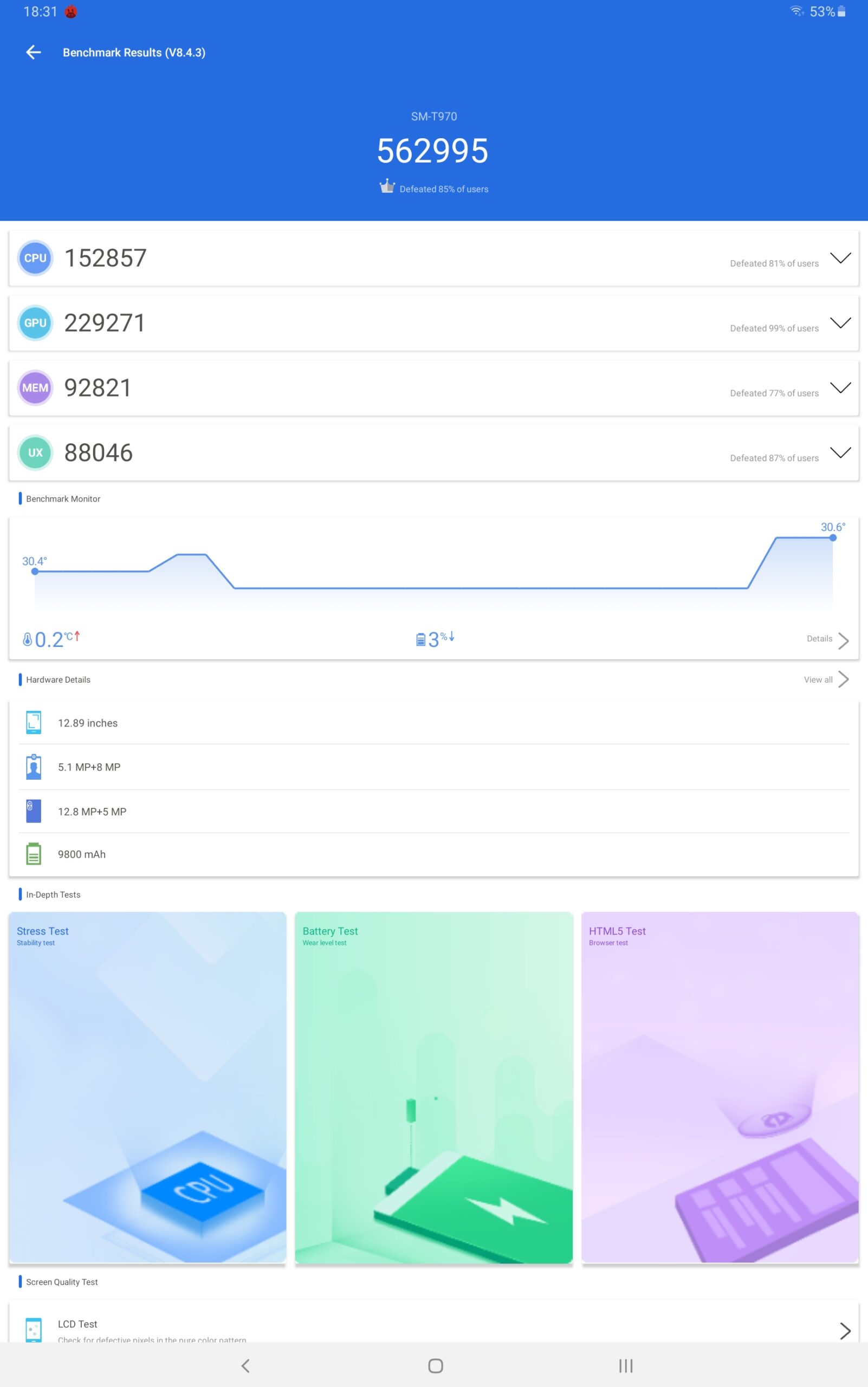
And speaking of speed, I managed to gauge the overall performance with Antutu Benchmark. The benchmark score is expected for this flagship chipset. Most of the recent devices that I reviewed scored below 300k but this Galaxy Tab S7+ managed a total score of 562,995. That is a flagship score, on par with most of the latest gaming smartphones out there.
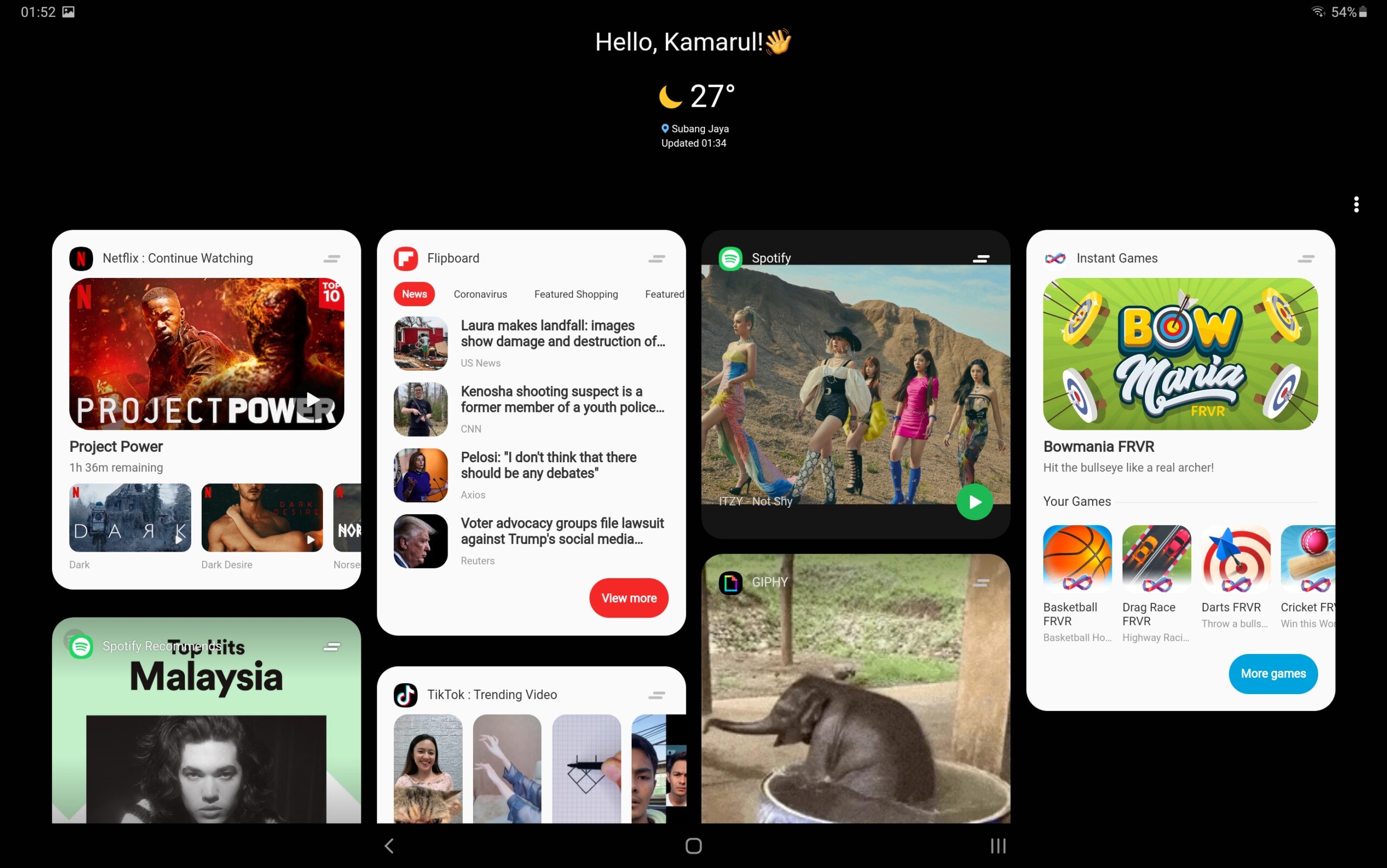
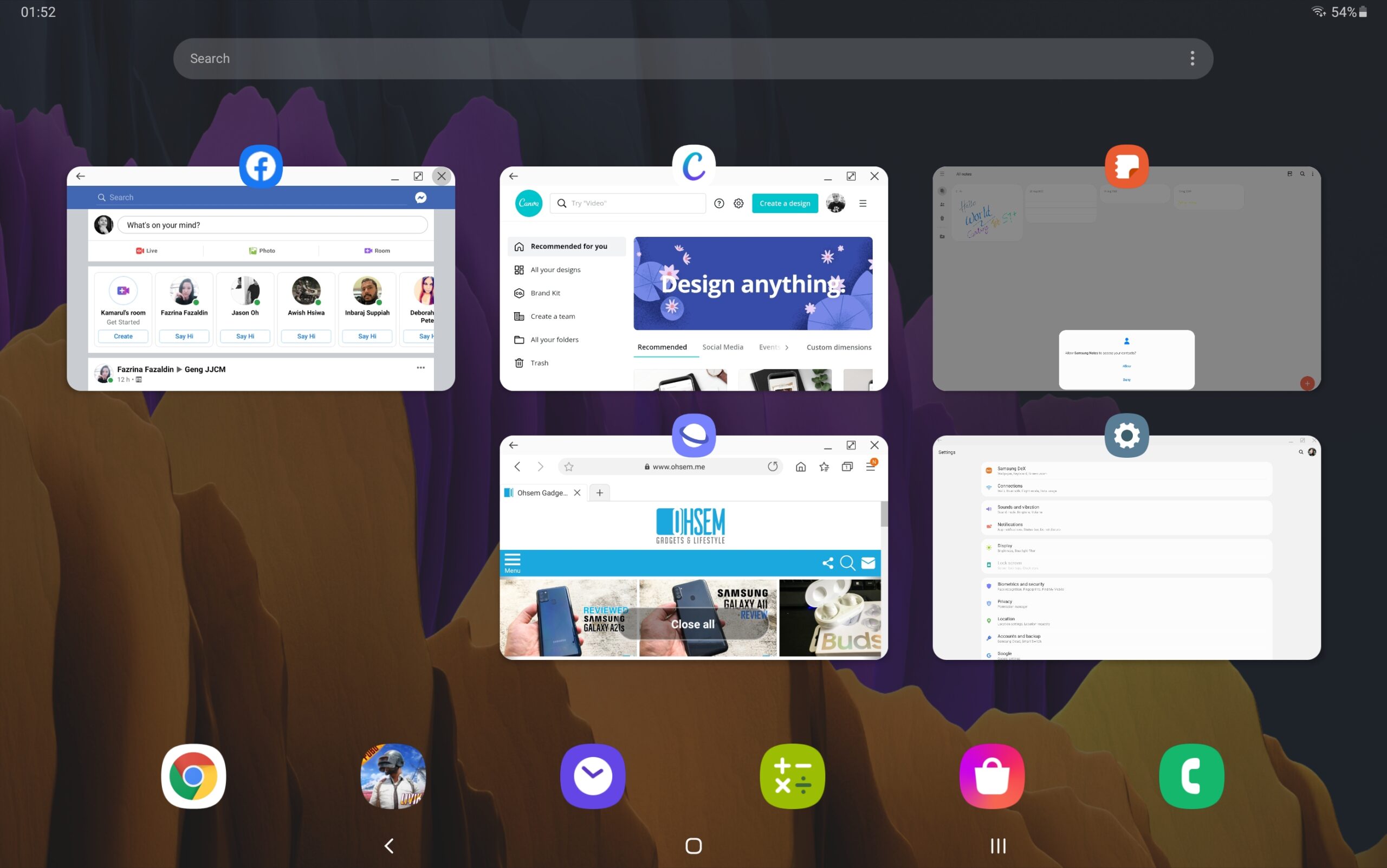
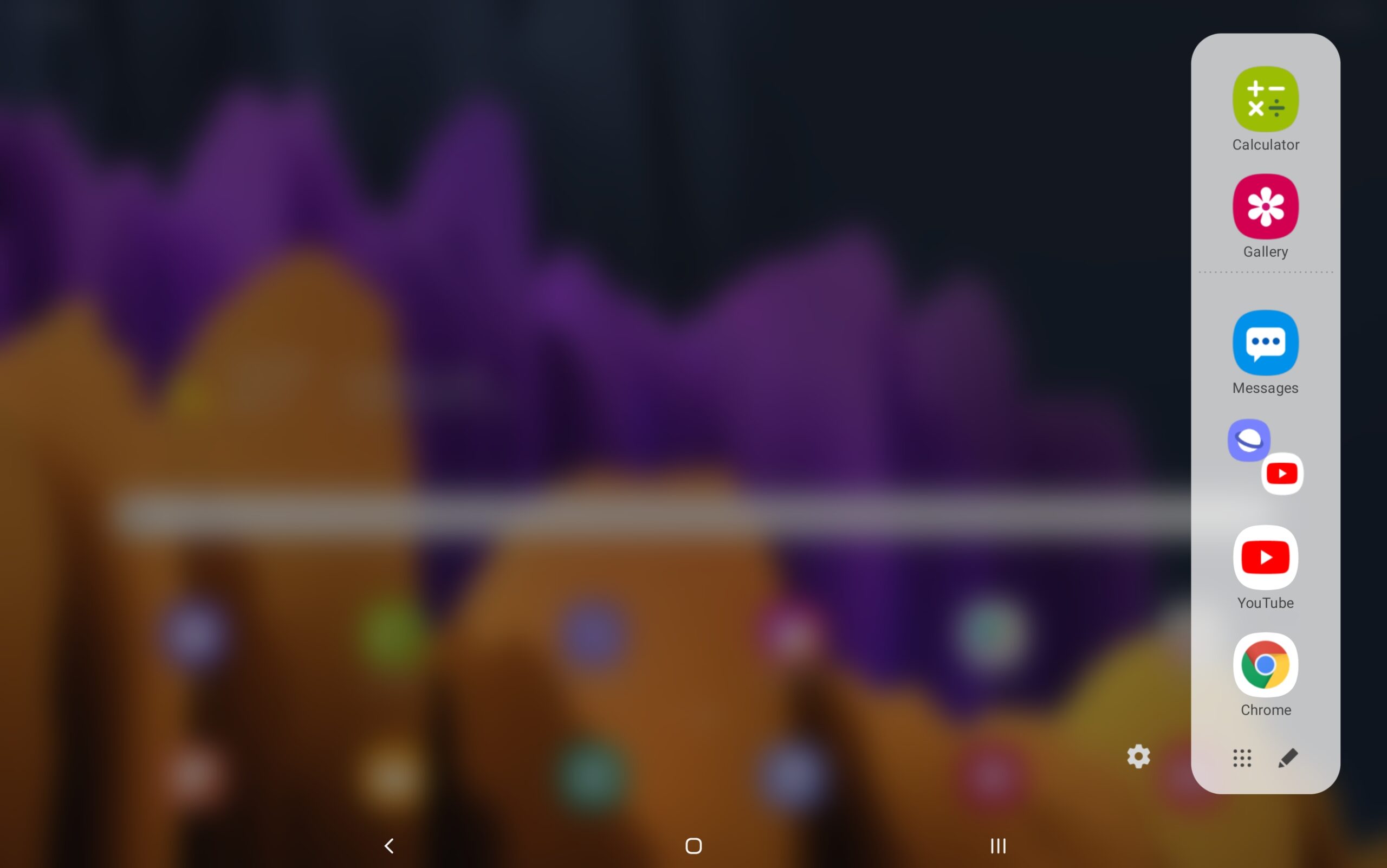
With all that power, multi-tasking should be a breeze. I did try out a few times with the multi-tasking mode, browsing a website on one side and editing a photo on another. Everything works smoothly without any problems. On the quick launcher panel (located on the right side of the screen), there is a function where you can add your own shortcut for multi-tasking window. Just with one tap, you can launch two (or three) apps simultaneously in a multi-tasking window. This is a handy function when you multi-task most of the time.
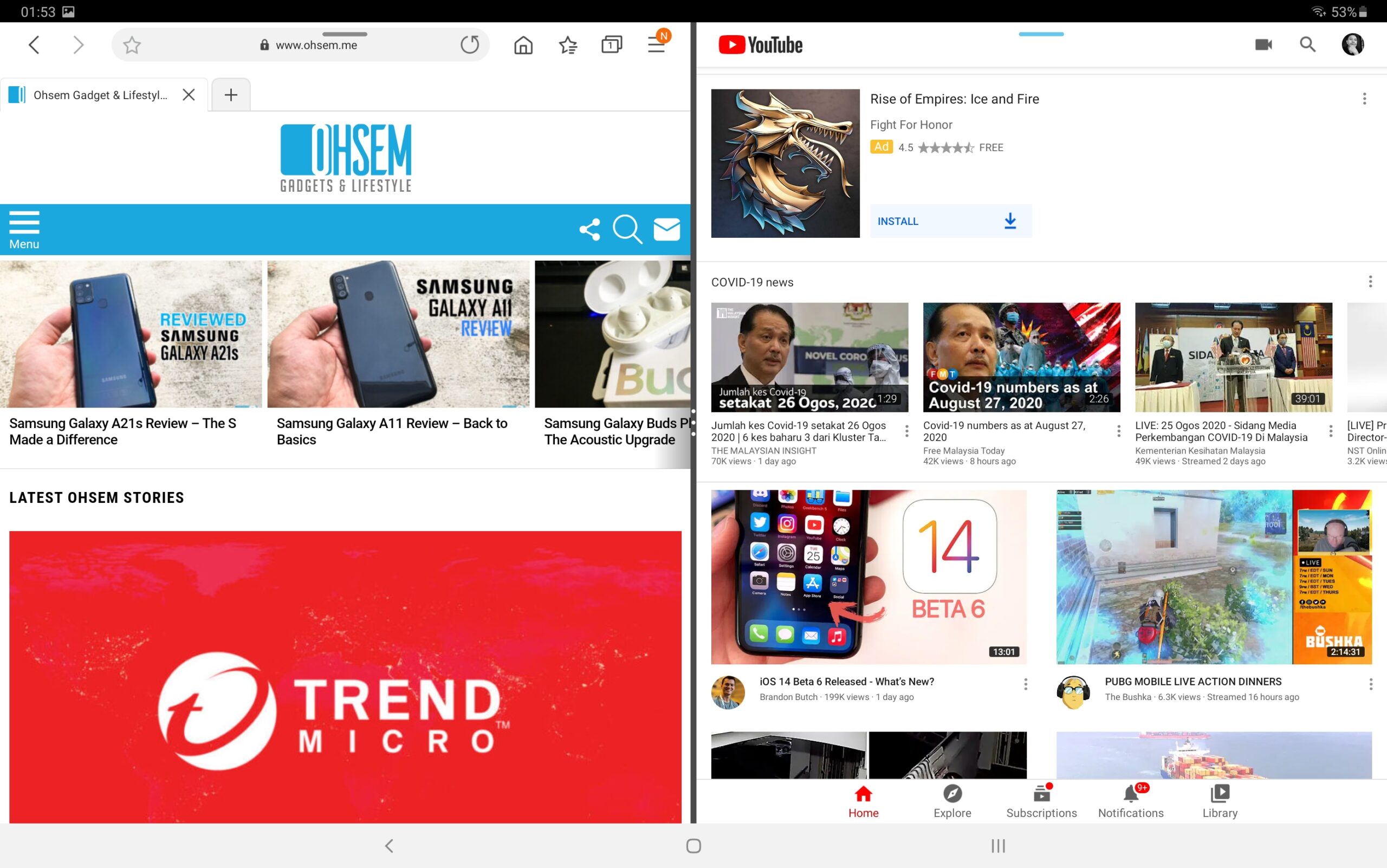
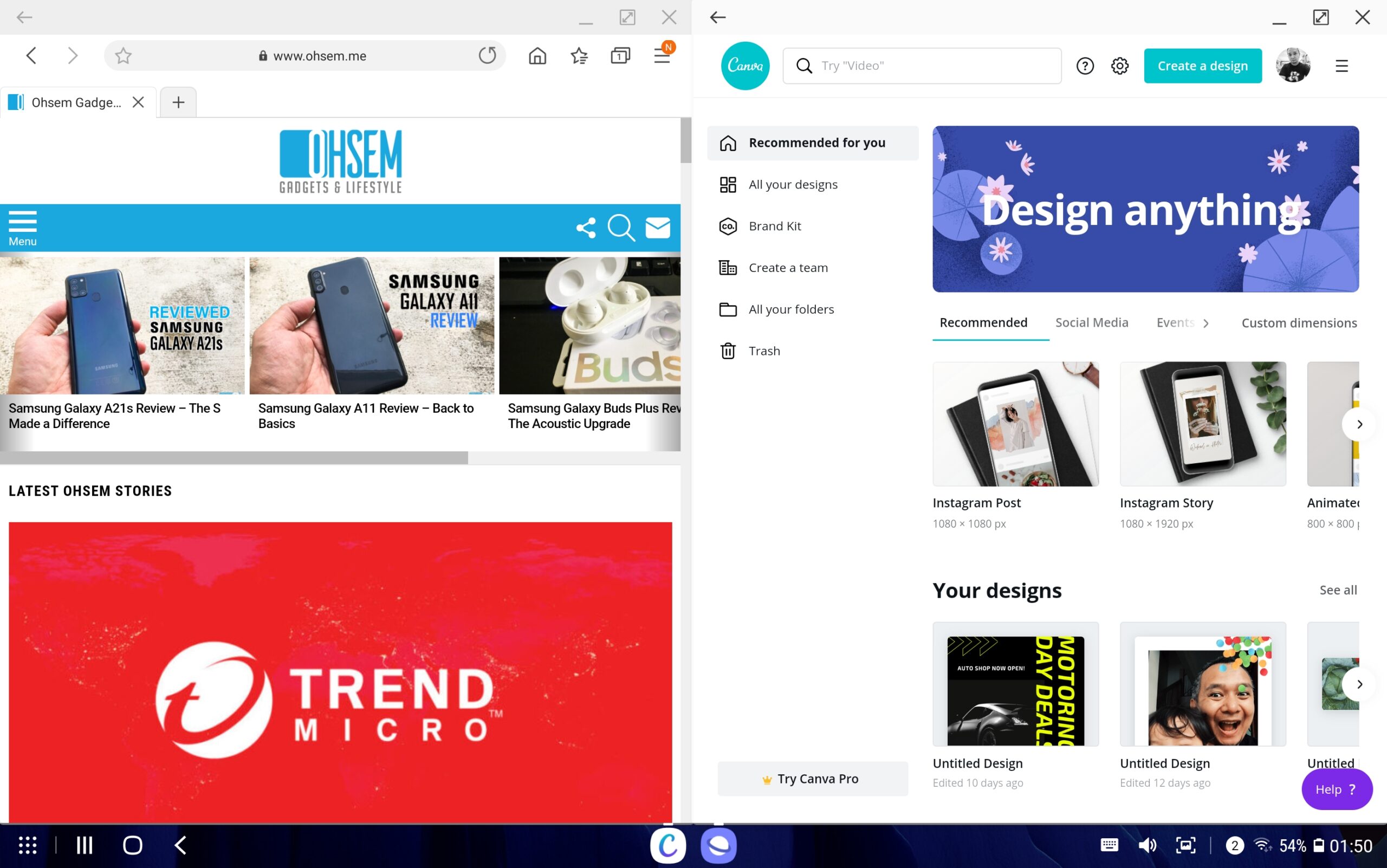
And again, the Galaxy Tab S7+ is made for productivity and it is great at it. I actually put my laptop away the whole time I had the Galaxy Tab S7+ with me. I feel like I am using the future of laptops. If you’re into photo editing, there are tons of apps that you can use other than Photoshop. Same goes with illustration work. Office suites are abundance as well. To work on the Tab S7+ for excel or sheets are easy, just like a normal laptop. Only better.